
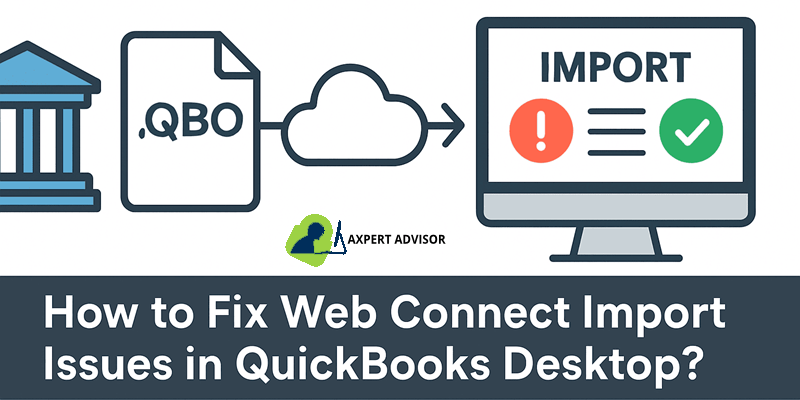
There are many types of errors and problems in QuickBooks Desktop that trouble the user. When the software is unable to verify the bank details in the .QBO file, the web connect branding issue starts appearing on the software. Usually, this problem arises due to the mismatch between the bank ID of the .QBO file and the QuickBooks record. Sometimes the bank file is too old or due to the different format, it does not match with QuickBooks, causing this error. The easiest way to solve this problem is to download a new .QBO file from the bank website that matches your QuickBooks setup. With that said, there are several methods mentioned below to solve this problem, by following which you will be able to easily connect to QuickBooks desktop Web.
What do you understand by Web Connect import issues in QuickBooks Desktop?
QuickBooks Web Connect errors usually encounters when QuickBooks is unable to read, validate, or map a .QBO file downloaded from a bank’s website. This can show up as errors like:
- QuickBooks can’t verify the Financial Institution Information for this download.
- The account you selected in QuickBooks does not match the account type in the .QBO file.
- No new transactions found. Your Web Connect file has already been imported.
- Web Connect import error: OL-222/OL-332/OL-393/OL-301/OL-304, or “Invalid format” messages.
How can I identify Web Connect import issues in my QuickBooks desktop software?
Below symptoms and sign indicate you, your software are facing Web Connect import issues:
- You are getting error while processing online banking details.
- Your QuickBooks software could not verify your bank information.
- QuickBooks fails to read the downloaded file.
- The software will ask you to sign in to your Intuit account to import transactions.
- The QuickBooks software asks you to select a new or existing account.
- The data was not imported into QuickBooks.
Factors leading to Web Connect import issues
- The .QBO file is not in the correct Web Connect format (it’s CSV, QFX, or manually edited).
- Trying to import the same file twice (duplicate/previously imported data).
- Corrupted download, special characters in file name, or long paths.
- Internet Options/TLS/SSL settings or Windows permissions interfering with QuickBooks.
What should I need to do before fixing the QuickBooks desktop web connect import issues?
- Always create Backup of your QuickBooks file.
- Always use supported version of QuickBooks.
- Download the .QBO file without editing.
- Make sure your internet connection be stable.
- Update QuickBooks Desktop to the latest release.
- Ensure you downloaded a .QBO file (not CSV or QFX) from your bank site.
- Set your account on Web Connect mode.
- Avoid accounts linked to other bank feeds.
Solutions to Fix the QuickBooks Desktop Web Connect Import Issues
If you are getting Web Connect Import issues on your QuickBooks desktop application then follow the below solution to fix this issue in simple steps:
Solution 1: Download the Web Connect File
- First you need to sign in your banks website.
- After that find the Web Connect (.QBO) file and download it.
- Open QuickBooks and your company file and import the downloaded .QBO file.
Method 2: Check Bank Messages
In this method, you have to check for any message or update regarding Web Connect setup from your bank.
- Browse your bank’s website and sign in with your account info.
- Now check any messages or any alert you are getting from bank.
- Follow the instruction which is provided.
- After that if web connect is not supported then disconnect the account.
Method 3: Change Bank Feed Mode
Make sure QuickBooks is set to the correct mode for importing transactions by adjusting the bank feed settings.
- Open your QuickBooks software again and go to the Banking menu.
- Select the Bank feeds option and then click on change the Bank Feeds Mode option.
- Select Classic or Register Mode.
- Then try to Import the .QBO file again.
Method 4: Create a Test File
Create a test file to determine if the problem is related to your parent company.
- Go to the file menu and click on the New Company.
- Choose the option of Express start or Start Setup and fill the required information in field section.
- For identification of new test company file add the word Test to the company file name.
- Click on the Start working.
- Now in the latest test company file import the same.QBO file.
- Downloading transactions within a single bank account causes problems in your master file.
Step 1: Successful File Import and Visible Transactions
- If the issue is with your Company file settings then open your original company file.
- Disconnect the account which occurring problem and then reconnect the account once again.
- After that Import the .QBO file again.
- If transactions appears then the issue is resolved now.
Step 2: Failed to import file or transaction missing
- If you are getting the message of Failed to import file or transaction missing then this problem is with the the .QBO file from your bank.
- Contact your bank for the help to resolve the issue.
- But before connecting bank check the bank log files.
- Speak to a bank representative familiar with QuickBooks and Web Connect issue and ask them to confirm the account is set up for Web Connect.
Conclusion
If you are failed to fix the issue of Web Connect Import in QuickBooks desktop by applying above basic steps. Then you need to contact QuickBooks experts. You can also try to resolve this issue by updating software, checking internet connection, run rebuild data tool. If error continue persists then connect QuickBooks professional to fix this issue on number i.e., 1-888-368-8874 as suggested.
Similar articles:
How to fix payroll error in QuickBooks Desktop?
Steps to Rebuild and Verify Data Files in QuickBooks Desktop







 +1-888-368-8874