
Get the best methods to resolve the QuickBooks error code 1402 when installing
Are you struggling with QuickBooks Desktop installation errors? If you've encountered QuickBooks Error 1402, you know how frustrating it can be to get your accounting software up and running. While QuickBooks is universally recognized as a powerful and essential tool for businesses of all sizes, offering robust features to manage your finances, it's not immune to technical glitches. QuickBooks is embedded with various new and updated features. This specific error, QuickBooks Install Error 1402, often signals an underlying issue with your operating system's integrity. We're here to provide a clear, concise guide to understanding its causes and, more importantly, the practical steps you can take to resolve it. Our aim is to equip you with the knowledge to troubleshoot this common problem efficiently and get back to business without a hitch. And, if you find yourself needing a hand, remember that our 24/7 QuickBooks enterprise support team is always ready to jump in and provide the expert assistance you need, saving you valuable time and effort.
What is QuickBooks Desktop Error 1402? A brief overview
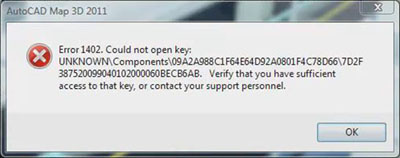
You may see the following error message on your desktop screen:
| Error | Description |
|---|---|
| Error Description: | Error 1402: 'Couldn’t Open Key.’ |
Solutions to Fix Error 1402 When Installing QuickBooks Desktop
There are many solutions available to fix this QuickBooks error code 1402 in the software. These include:
Solution 1: Use QuickBooks Install Diagnostic Tool using tool hub program
This tool can be operated via the Tool Hub. Use the following steps to download this tool.
- First, you need to close your QuickBooks.
- Now download the latest version of the QuickBooks Tool Hub from the Intuit website.
- Save the file somewhere you can easily access it.
- If you already have Tool Hub:
- Then you need to check the version you have. For this go to the Home tab and the version will show you on the bottom right.
- If you don't have the tool hub:
- Then double-click on the downloaded file that we went over in steps before.
- Now follow the instructions provided on-screen to install the file and accept the Terms and Conditions.
- To access the tool hub, the next step is to double-click its icon to open it.
- In the Tool Hub program, select QuickBooks Install Diagnostic tool from Installation Issues tab.

- Start the scan process by a click on Run Scan option. It may take around 15 to 20 minutes according to the network speed.
- Then, restart the software after the process is complete.
Solution 2: Update the Windows and Install the missing updates
- Tap on the ‘Windows‘ icon from the bottom of the desktop.
- Head for Update the Windows or Windows update and choose ‘Check for updates.’

- Install the pending updates.
- Restart the computer after all the updates.
Solution 3: Repair QuickBooks desktop
- To start, press the Windows Start button, and then open Control Panel.
- After that, go to “Programs and Features”.

- Find QuickBooks from the list of installed programs and click on it.
- Now select Uninstall/Change tab.

- Then, tap on Repair button and follow the instructions on the screen to repair the accounting program.

- When the repair process is done, you need to restart your computer,
Solution 4: Making changes to the Registry Settings
- Under this solution, firstly press the Windows + R keys, on the keyboard.
- Then type "Regedit" on the run box and press Enter key.

- Create a backup of the registry before making any changes.
- You need to go to File menu and select Export.
- Now provide a name of the backup file and save it to your desktop.
- Next step is to locate the keys “HKEY LOCAL MACHINESOFTWAREClasses”, and “CLASSES HKEY LOCAL MACHINE SOFTWARE = "Classes"”.

- Navigate to the Edit menu and select Permissions.
- Then, choose "Advanced" option followed by clicking on "Add."
- Click on Everyone tab for each object name, and then press the Enter key. That's it!
Solution 5: Uninstall and Reinstall Adobe Flash Player
- You need to download the install diagnostic tool and run it.
- Furthermore, hit on the Start menu and type in 'Control panel.'
- Next, double-tap on Control panel to open it.
- Head to the Uninstall a program option.
- Search for the Adobe flash player ActiveX in the list of programs.
- Opt for the Uninstall tab.

- Perform the on-screen prompts and let the Uninstall process conclude.
- Download the adobe flash player and reinstall it.
Solution 6: Make use of selective startup mode
Step 1: You need to first prepare the data
- Create a backup of the company file.
- Keep a copy of QuickBooks desktop product and license information.

Step 2: Start the system in selective mode
- Tap the Win+ R keys to open the Run command.
- Type in 'msconfig' and tap on the OK tab.

- Now, go for Selective Startup in the General tab.
- Head for Load system services and then go to Services tab and select Hide all Microsoft services.

- Lastly, hit a click on Disable all tab.
Step 3: Uncheck the Hide all Microsoft services checkbox
- You need to ascertain that the Windows installer checkbox has opted from the list of services. Select the checkbox, if not.
- Heading forward, you need to choose the OK tab.
- Moreover, reboot the system configuration window.
Step 4: Uninstalling or installing QuickBooks desktop
Step 5: Switching back to Normal startup mode
- Hit on the Win + R keys for accessing the Run command.
- Now, type in 'MSConfig' and also tap on OK tab.
- Go to the General tab, and also go for Normal startup.

- Now hit on the OK tab.
- Conclude the process by hitting on reboot on the system configuration window.
Solution 7: Adding QuickBooks to Bitdefender
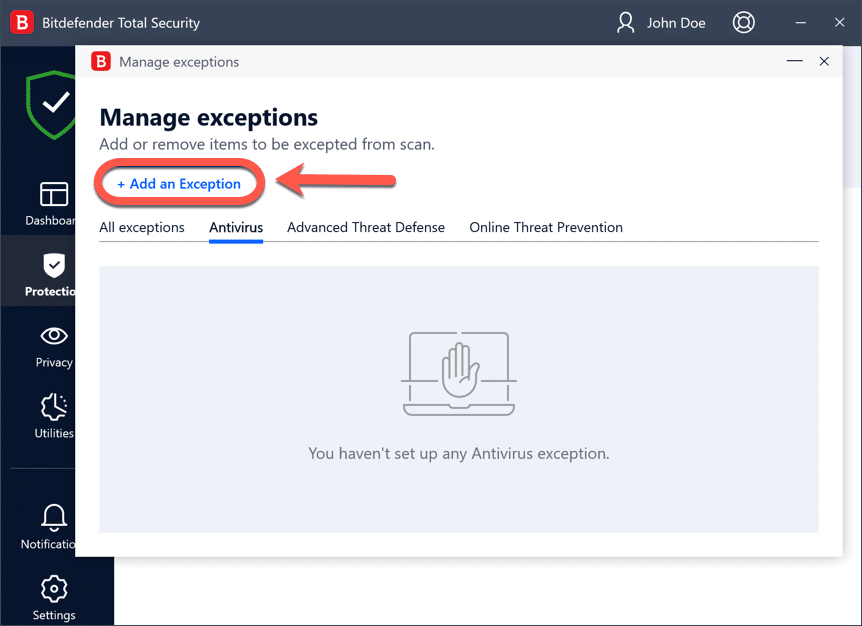
- This particular method isn’t mandatory but can be implemented by the ones using Bitdefender.
- Put the C:\Program files\common files in the exclusion list for 32-bit Windows OS
- For 64-bit Windows OS, you need to put C:\Program Files\ Intuit (C:\Program Files (x86) in the exclusion list).
Solution 8: Download and Run QuickBooks Connection Diagnostic tool

- First, Download and install the QuickBooks connection diagnostic tool in your system.
- Run the tool in your software.
- The Diagnostic tool will scan and start troubleshooting the error.
- Then, restart the computer.
What are the primary causes behind the QuickBooks error code 1402?
There are many reasons which can trigger this error code 1402 in QuickBooks desktop. Here we are mentioning some of the common reasons which are as:
- When there is a corrupted QuickBooks Installation file.
- When the installation is done from a damaged CD.
- While there is an incomplete Installation of the program.
- This error occurs when Windows are not updated to the latest version.
- Some Corruption is found in the software.
- When you go for excessive startup entries of programs and applications.
- Some failures persist in the hardware.
- This type of error can also be seen, when windows segments like .Net Framework and MSXML need a particular purpose to install and run third-party applications on Windows.
How to Prevent Install Error Code 1402 in QuickBooks?
Read the following points that will help you to prevent your software from Error 1402:
- You should backup your data frequently.
- Avoid interruption in software installation even if it is taking a longer time.
- Make sure that you delete all junk files and have a clean reinstallation of QuickBooks again.
- Remember to regularly update your QuickBooks accounting software.
Winding up!
Following the steps given above will surely help you to resolve the error code 1402 in the QuickBooks. You can try the solutions one by one and if the error is not fixed by following the one. If you face any query then, you can talk to our professionals for solving your doubts. Contact us anytime on our QuickBooks support number i.e., 1-888-368-8874 and leverage the profound knowledge of our experts. We are always there for your help.
Related Topics:



 +1-888-368-8874