
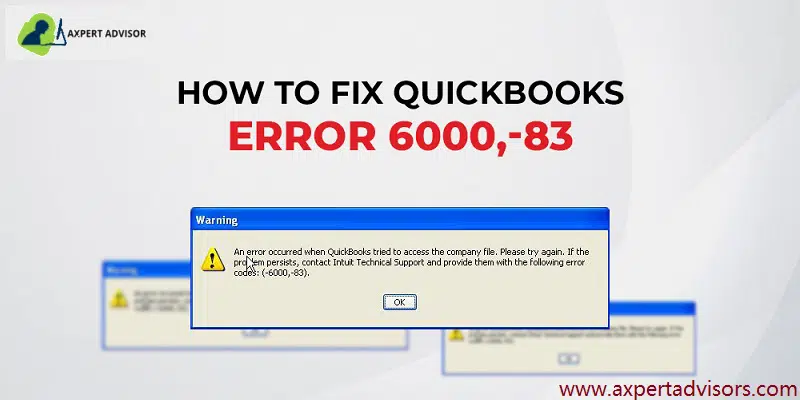
Here are the reasons and solutions of QuickBooks Error 6000 83:
QuickBooks is an invaluable tool for small and mid-sized businesses, empowering owners and accountants to efficiently manage complex accounting tasks like bookkeeping, invoicing, cash flow management, growth tracking, and tax preparation. It's designed to save both time and money, making sophisticated financial operations accessible without the need for extensive staff or external services.
However, like any robust software, QuickBooks can encounter technical glitches. One common issue users face is QuickBooks Error Code 6000, 83, a company file error that typically prevents you from accessing your crucial company file or performing essential backup and restore operations.
This guide will dive deep into QuickBooks Error 6000, 83, exploring its causes and providing detailed steps you can take to fix it. Get ready to regain seamless access to your QuickBooks company file and keep your business running smoothly.
What Is QuickBooks Error Code 6000, 83?

QuickBooks error code 6000 83 is one of the 6000 series company file errors that can cause great damage to your company file data. You may get such errors when trying to open, restore or perform backup operations on your company file in QuickBooks. Thus, you may face frequent crashes and application failures. When this error occurs you may see the following error messages on your computer display:
| Error | Description |
|---|---|
| Warning | You do not have sufficient permissions to the specified folder. To use QuickBooks in a multi-user environment, you must have read/write access and create/delete rights to the folder where the company file is stored. |
| Warning | An error occurred when QuickBooks attempted to access the company file. Please try again. If the problem persists, contact Intuit technical support and provide them with the following error code: (-6000, -83) |
| Warning | Unable to access company file error: - 6000, -83 |
| Error | We’re sorry, but QuickBooks can't open your company file. |
Solutions to Troubleshoot QuickBooks Error Code 6000 83
There are many solutions to fix the QuickBooks error code 6000, -83. Before taking any steps first we need to know the actual reasons behind the error. When we know the reasons of this error then we should take suitable steps to fix the issue. Here we are giving some solution on the basis of the condition. You can follow to fix them.
Condition 1: Open the QuickBooks company file stored on a Windows Server
Solution 1: Use the QuickBooks File Doctor tool

- At first, download the latest version of QuickBooks tool hub program.
- Next, install and open it.
- Then go to Company File Issues tab and select Run QuickBooks File Doctor tool option.

- The QuickBooks File Doctor tool will scan the company file problems and fix it.
- Now, restart the computer.
Solution 2: Turn off hosting on all Workstations that access the file over the Network
In case you use QuickBooks Desktop on multiple systems, configure just one to host the company file. Here are the steps that you can follow to turn off hosting on computers.
- Open QuickBooks Desktop and move to File menu.
- Here position your cursor over the Utilities tab.
- Then select Stop Multi-User Access Hosting option.

- If you see the “Host Multi-User Access” option and Stop Hosting Multi-User Access is not listed, do not select “Host Multi-User Access”.
- Now you need to move on to the next workstation.
- Repeat the above actions on all workstations.
Solution 3: Manually Resolve Error message -6000, -83
Configure your system Firewall and other security software settings
Important: Intuit does not provide any support service for firewall related issues.
- You need to configure the firewall and internet security settings for QuickBooks and also network access to view the exceptions needed.
- Perform the instructions from the firewall maker's website to configure the firewall to allow internet access to QuickBooks files on the entire system.

Verify the permissions to access the QB company file
- For confirming that permissions are arranged correctly, you need to see the setup folder & file permissions to share the company files.
- In case you want to place permissions, then move to the set Windows access permissions to share the company files.
Scan the QuickBooks company files
- Initially, click on Windows or Start menu.
- Next, tap on Programs and select QuickBooks database server manager.
- Furthermore, head to QuickBooks database server manager screen and hit a click on Add folder.

- Search the folders that have QuickBooks company files.
- After the QuickBooks folders are added, then select Start Scan tab.

- Now, under the QuickBooks company files, you need to Check the files.
- Lastly, browse to the files and folder that have the company files. Ensure that the qbw and .nd file was created or built for each of the company file.
Check the hosting on the systems
- You need to open the QuickBooks application and move to the file and select Utilities tab.
- From the list:
- If the Host multi-user access option is present, then it indicates that the system is not hosting the company file.
- Else, Stop hosting multi-user access should be selected.
Open the company file from a different location
- At first, you need to host the system to open the company file.
- Move to the system where the company file is saved.
- If the only system that stores or installed the server is hosting the system, then you should move the company file to some other location.
- Now open the software and also the company file that is facing the issue.
- In case you are capable of opening the company file, then check the company file.
- Else, move to the other step.
- If you are getting instructions from the software to rebuild the company file, then do the same.
- Now copy the QuickBooks file to another location.
- At first, access the folder having the company file.
- After that, right-click on File name and hit on Copy tab.
- Now right-click on the Empty area and Paste tab.
- Turn on QuickBooks and open the company file on the desktop.
- In case the QuickBooks company file opens, then copy the file back to its original location.
- Make sure that the original company file name is renamed before copying the file that is freshly opened from the system.
Solution 4: Edit the Windows Hosts File
To complete the following steps, you must have administrator access to the server and any computers connected to the server.
Editing Windows host file
- Initially, you need to close QuickBooks on both the server computer and the workstation.
- On the server computer open the Windows Start menu and select Computer.
- Then move to the following location:
- C:\Windows\System32\Drivers\Etc
- C:\Windows\System64\Drivers\Etc
- Furthermore, you need to double click on Host file.
- Now choose Notepad.

- In the next step, enter the computer name after the IP address use the Tab key to give a space.
- Enter the workstation's IP and computer name on the server computer.
- On the workstation enter the IP and computer name of the server computer.
- Click the File menu in Notepad and select Save.
- Type “Hosts” (including the quotation marks) as the file name.
- Select the Desktop as the location to save the file.
- After saving the file right-click on it and select Copy.
- Browse to the file location you used in step 2. You can go to C:\Windows\System32\Drivers\Etc or C:\Windows\Syswow64\Drivers\Etc.
- Find the hosts file, right-click it, and select Rename.
- Rename the hosts file to “hosts old” and select Continue.
- In last, press the Ctrl + V keys to paste the copied file, then select Continue.
Get the IP address and computer name of the server and workstation
- Press Window and R button key together to open the run box.
- Now enter cmd on the run box.
- Type ipconfig /all at the command prompt and press Enter key.

- Here on the black screen is your server name and IP address note it down.
- Repeat these same steps for other workstations.
Condition 2: While Restoring your company file
Solution 1: Check if the file name and the file path are leading to the error
QuickBooks keeps every file name and path at the time we try to restoring the backups. You need to make sure that the file name should not contain any special characters in the file and the path.
Acceptable: C:\Users\Lina\My Documents\QuickBooks data\Company Name.qbw
Not acceptable: Business\Lina\Lina’s Documents\My Business $.Business – The quotation mark (‘) and the dollar sign ($) are special characters. The Lina’s Documents folder and the My Business $.qbw file should both rename.
Solution 2: Review your Backup file name
- Click on Start menu and search file explorer and hit to open it.
- Find the folder that contains your backup company file with the .qbb extension.
- To rename your company file right-click on the company file name and then select Rename.
- Next, restore your company file.
Solution 3: Restore from a Backup
- Open QuickBooks and go to the file menu.
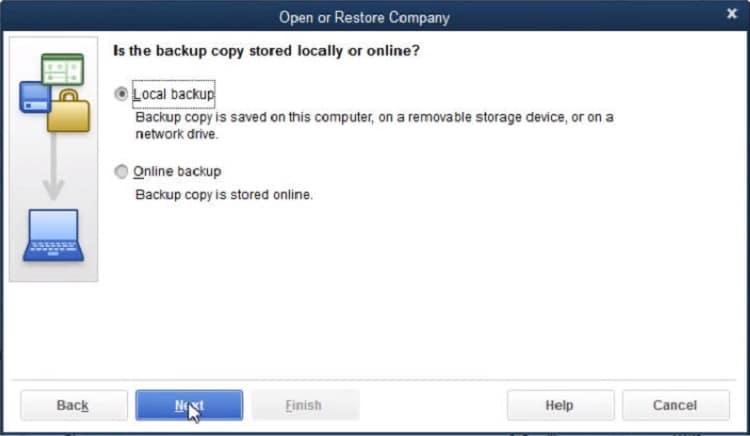
- Now select Open or restore company and then restore a backup copy.
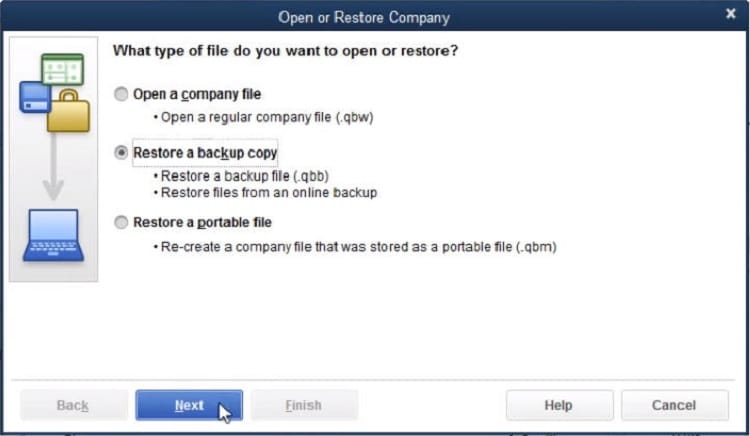
- Click Next and select the Local Backup option.
- Browse to the company file backup on your hard drive and click Next.
- Follow the prompts to complete the restore process.
Solution 4: Repair QuickBooks desktop
- In the first step, you need to go to Control panel and open the Programs and Features option.
- After that click on Uninstall a program tab.
- Moving ahead, you need to select QuickBooks desktop from the list.
- And opt for Uninstall / change.

- In next step you need to click on continue > Next > Repair > Next > Finish.

- Run QuickBooks. Try to open the company file.
Condition 3: While opening the QuickBooks Company file stored on a Linux server
Important Tip: The below given solutions should be performed by the system administrator with having good knowledge of using the Linux operating system. Additionally, you need to have complete insight of network operations and permission to install properly while configuring the QuickBooks enterprise solution Linux Database Server Manager.
Solution 1: Configure your Linux server
- First, try opening the Linux Database Server Manager on your server.
- Then, you must configure the database server manager and the directory in the Initord.conf file.
- Finally, you must restart QuickBooks enterprise on your host computer.
Solution 2: Configure your host file
You can use the IP address and Linux server name, in order to Edit the host file from the workstation.
- Open the start menu on any Network-connected workstation.
- Type ‘CMD’ in the search box to open Command Prompt.
- Type ‘ping [name of your Linux server]’ and press Enter.
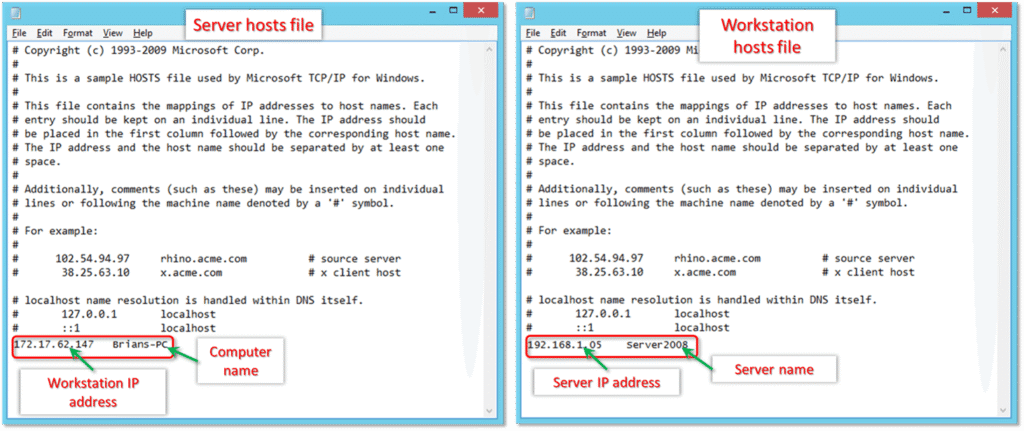
- Note the server name and IP address.
- Ensure correctness on all workstations, starting with the one displaying error 6000,-83.
- Close QuickBooks on all computers connected to the network.
- Press Windows + E keys together and open Windows File Explorer.
- Navigate to C:\Windows\System32\drivers\etc\hosts.
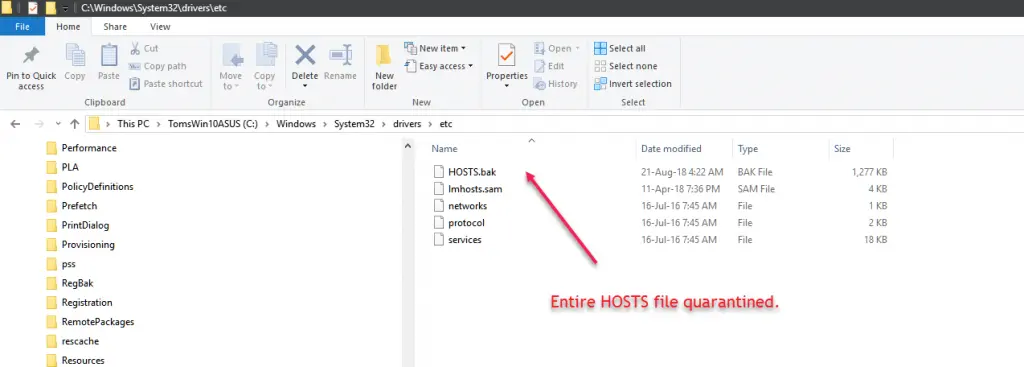
- Right-click on hosts, select Open with and select Notepad.
- Finally add the Linux server IP address, press Tab, and add the server name.
- Save the file and close Notepad.
- Open QuickBooks desktop and access your company file.
Condition 4: When your are creating a backup of the company file in new folder
If QuickBooks Error message 6000, -83 occurred while creating a backup of the company file, you can perform the following troubleshooting steps.
Important Tip: Before performing the steps, ensure that if you have stored the company file on a server, then you need to move it to the local hard drive first. Once the error fix done, move back the company file to the server.
- At first, go to File menu and select close QuickBooks desktop.
- Next, click on Windows Start menu.
- Then type File Explorer into the search bar and click to open it.
- Select This PC from the navigation bar and open C: drive.
- And further, create a new folder and rename it as “QB Test Folder”.
- Now follow the steps to create a backup company file and saved it on the C: drive.
- You can scheduled backup as automatically uploaded or you can create it manually every time. (It is recommended schedule automated backups).
- Now go to File menu and click on switch to Single user mode.

- Again click on File menu and move the cursor to the Backup Company option.
- After that click on Create Local Backup and Next.

- Simply click on Browse on the Local Backup section and select the location to save the backup for the company file.
- Optionally, you can also set the number of backups you want to keep.
- You can schedule backup reminders in the online and local backup sections.
- Now click on Full verification and let the test backup run. Then confirm with OK.
- Next, click on Select it now and schedule future backups and then click on Next. If you don't want to upload a backup right now, you can alternatively select only schedule future backups.
- Select the “Automatically save a backup copy when I close my company file” checkbox and choose the number.
What are the causes behind the QuickBooks error code 6000, 83?
There are several causes which can trigger the QuickBooks error code 6000, 83. Here we discuss some of the common causes after that we discuss the solution to fix this error.
- If your company file is damaged it can trigger the error 6000, 83.
- There might be missing installation files from the QuickBooks installation directory.
- Windows security software prevents QuickBooks from accessing the company file stored on the server.
- If your company files have the incorrect file extension like .qbw.adr or .qbm.
- The Windows user account has not been granted sufficient permissions to access the server or the QuickBooks database service.
- There may be multiple computers in the network hosting company files are also trigger this error.
- If you update the company file stored on the server with latest version then it might be the reasons of this error.
- Due to network connectivity issues, the client’s workstation cannot connect with the server hosting the company file.
- There are Insufficient permissions for your network server, Windows user, or QBDataServiceUserXX
- QuickBooks installation may have corruption or is incomplete.
- This error could be due to an incompatible version of QuickBooks Desktop.
- You are using the wrong path to set up QuickBooks desktop on the client's computer.
- The company file is being hosted by more than one workstation.
- Access to the company file is restricted by the server.
- Your antivirus is restricting access to QBDataServiceUser.
- More than one computer trying to host the company file.
- The chances are high that you have set up a different language on Windows other than English.
- Users who use a “non-US” or “non-Canadian” version of Windows may also experience this issue on their PC.
On Linux servers:
- If there is no qbdir.dat file exists or if qbmonitor function is not monitoring the QuickBooks company file in the directory.
- Another trigger can be if the system is unable to ping the server name.
Common Symptoms of QuickBooks error 6000, -83
- The error code appears on the screen and the program window crashes.
- Windows respond slow to the keyboard inputs.
- The system freezes repeatedly.
Conclusion!
In this segment we learnt about the how to fix the QuickBooks error code 6000 83 with the help of the solutions entailed in this article. We also discussed above the major causes of this error and solution to fix it. However, if you have any doubts and you need any technical guidance then you contact our QuickBooks enterprise error support team at 1-888-368-8874. Our experts are available 24 x 7 to provide you with complete support.
You may also like:



 +1-888-368-8874