Updating QuickBooks Desktop has become an indispensable practice considering the new features that are included in every new update. Users have been entangled into different update errors in QuickBooks, all of which put a complete halt on the update process. In the present discussion our focus would be on QuickBooks Error 1310. This error is pretty different from the Error 15xxx and Error 12xxx series, which also show during the update process. Diving into Error 1310, this error code appears as an illustrative message which states “Error writing to file C:\Config.Msi\5f60cd6.rbf. Verify that you have access to the directory” or “Error writing to file C:\Program Files\Intuit\QuickBooks 2018\BusinessObjectProvider.dll”.
Read this full blog to get aware of the various causes that may result in this QB update error, and also get to know the different troubleshooting methods to curb QuickBooks Error code 1310. When encountering such error, you may receive an error message similar to the following:
Problem
Description
Error 1310:
Error writing to file C:\Program Files\Intuit\QuickBooks 20xx\BusinessObjectProvider.dll
Error 1310:
Error writing to file: C:Config.Msi…
Primary causes behind QuickBooks Error 1310 (Writing to File Error)
The user does not have sufficient permissions to install or update Windows.
To prevent accidental changes during setup, the installation drive is read-only.
Data on the hard drive is corrupted or has been damaged.
QuickBooks Desktop cannot be installed due to obstruction caused by the antivirus software.
The user does not have authorization to access this folder.
The installer for Microsoft Windows is not licensed.
Firewall has identified the QuickBooks update process as a potential security risk, thereby preventing its installation.
The installation source got damaged.
If you have a poor Internet connection.
You may have an incorrect system date or time.
Some conspicuous symptoms of QuickBooks error message 1310
Some major signs and symptoms of this error are:
An unexpected error message appears and closes the current window.
Due to this error, you might be unable to install the latest version of QuickBooks.
Every once in a while, the computer shuts down completely.
The system recurrently hangs and crashes, especially when performing operations related to QuickBooks.
Basic Prerequisites before fixing Error Code 1310 in QuickBooks desktop
Before embarking on the process to troubleshoot the QuickBooks error code 1310, the following steps need to be adhered to:
Verify that you are logged in as an administrator on Windows.
Restarting Windows in Safe Mode will prevent third-party software from interfering with the installation update.
If installation error 1310 persists, try installing the software in a different directory.
Verify that your hard drive has enough free space to accommodate the QuickBooks setup.
Some other Essential Considerations
Make sure you are logged in as an administrator before attempting any troubleshooting in Windows.
Disable all startup programs or restart Windows in Safe Mode before installing or updating QuickBooks Desktop.
Error 1310 during QuickBooks setup can sometimes be resolved by restarting Windows in Safe Mode.
Make sure your hard drive has enough free space for the installation of the update.
Multiple Solutions for Fixing QuickBooks Error Code 1310
Users can follow this section to its end and perform all the troubleshooting instructions keenly to get Error code 1310 (Writing to File Error) rectified.
Method 1: Switch User Account Control (UAC) settings
Verify that you’re logged into Windows with an Administrator account.
If it doesn’t work, try updating or installing QuickBooks Desktop again once you’ve restarted your computer.
Turn on User Account Control (UAC) and scroll into Never Notify option.
Now, try updating the accounting program once again.
Method 2: Unregister and reregister MS Windows Installer
There are instances when certain Windows installer files get de-registered due to one or the other reason. This can be detrimental for QuickBooks updates and can potentially incite Error 1310 in QuickBooks, also called the Writing to File Error. The procedure for “deregistering and registering the Windows Installer files” is:
Hit on the Start menu, and in there, access the Run box.
The next step is to unregister the installer by typing “msiexec /unreg” in the Run bar and hit Enter key.
After that, go for the re-registeration by typing “msiexec /regserver” and press Enter key.
When done with these easy steps, run QuickBooks as an admin and retry the update process.
If the error persists, download the update from the website of Intuit (Manual process) and afterwards, get the update downloaded by double-clicking the downloaded .exe file for the update. If this doesn’t work, then change the UAC settings (discussed in the next troubleshooting solution).
Method 3: Access the QuickBooks install diagnostic Tool via the Tools Hub program
QuickBooks Tool Hub program has provided a huge respite to users as it has acted as a savior against potential technical issues confronting the QB program. One useful and noteworthy tool which can fix wide range of installation errors, including the Writing to File Error 1310 is the Install Diagnostic Tool.
Download QuickBooks Tool Hub from Intuit.
Set up the tool by double-clicking on the downloaded file, namely, QuickBooksToolHub.exe.
When the setup is finished, the tool hub shortcut will be visible on Windows Desktop.
Ensure QuickBooks is not running in the background. Subsequently, launch the diagnostic tool.
Restart the computer after the procedure is complete.
Once all the foregoing steps are complied with, try updating QuickBooks again.
Method 4: Repair QuickBooks Desktop
Still facing theError code 1310 in QuickBooks when updating the program? Try repairing the program from the Control Panel by conforming to the below-mentioned procedure:
Advance to the Start menu, and therein, search for the Control Panel.
In the Control Panel, advance to the Programs and Features tab.
Herein, scroll down through the list to choose QuickBooks Desktop.
Hit on Uninstall/Change and then tap on the Repair option.
Lastly, try to update the program once more time.
Method 5: Utilize the Command Prompt to manually grant full administrator privileges to the installer
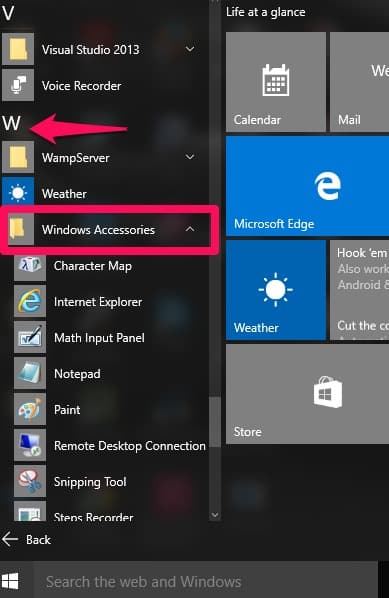
Initially, go to Windows Start menu then All Programs and choose Accessories option.
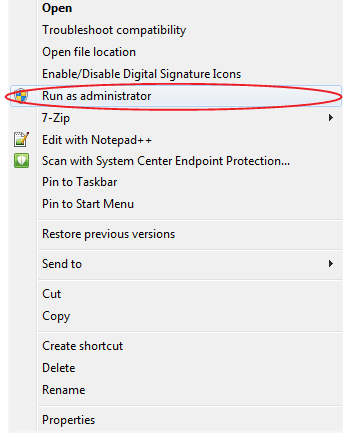
After that right-click on Command Prompt and choose Run as Administrator.
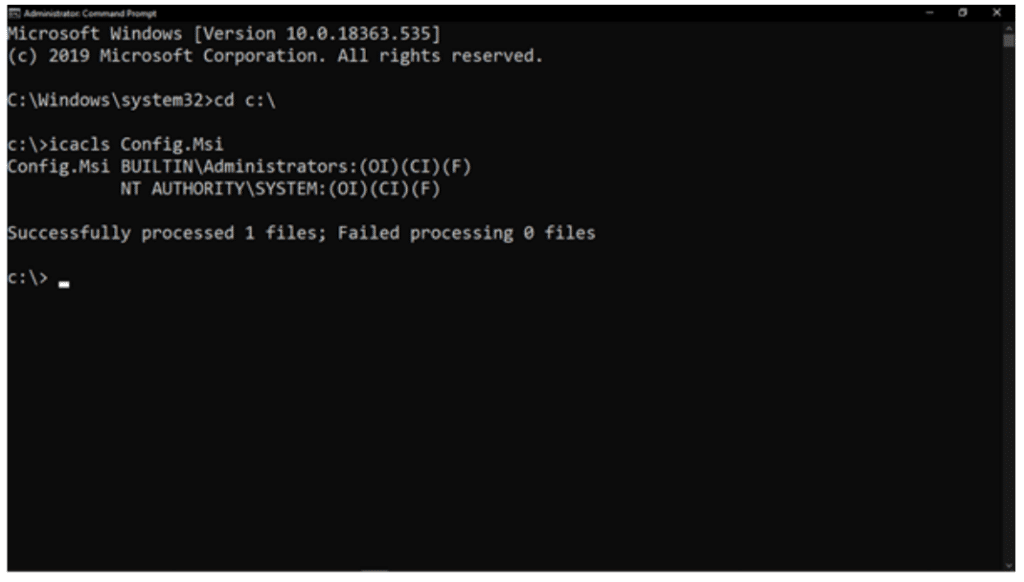
Here you need to type icacls “C:\Config.Msi” /T /C /grant administrators:F.
Note: You also need to change Config.Msi to the folder referenced on the error message you received.
Now hit on Enter key and close the command prompt window.
In last step you need to try to install QuickBooks and check the error is resolved.
Important Points:
We recommend, seek guidance from an IT professional or System Administrator if you’re not confident in executing these steps.
When done with this, run QB and try to update the accounting program again.
Final Words
We have gone through the various methods to Resolve QuickBooks error 1310. This error can be a major obstructing block on the road to updating the QB program. Although the given methods enumerated in this article should be enough to get this error rectified, if you are still encountering this error, please contact our QuickBooks error support team through our helpline .i.e., 1-888-368-8874.
The world’s leading accounting software, QuickBooks, is crucial in bringing small and medium-sized business owners, entrepreneurs, and accountants closer to their respective organizations’ goals. Even though it’s a cutting-edge piece of software, it has some bugs. The “QuickBooks error 102” is one error you could encounter as a user.
You may get this error when a server has trouble transferring data between your bank’s website and QuickBooks. This could be due to website maintenance, a technical glitch on the bank’s end, or a problem with data transfer. In this article, we have discussed about the possible causes behind to this error and several ways to resolve QuickBooks banking error 102. Thus, keep reading to this article till the end.
What is QuickBooks Error Code 102 and Why It Happens?
QuickBooks error 102 is an error that occurs when there is a problem connecting to your bank’s website or if your bank’s servers are undergoing maintenance. This error prevents QuickBooks from downloading or uploading transactions, and it usually occurs when you are trying to connect to your bank account from within QuickBooks.
When you encounter this error, QuickBooks will display an error message on the screen, stating that the “Online banking connection has been interrupted“. This error can be frustrating because it can disrupt your accounting process, and you may not be able to see up-to-date financial data in your QuickBooks account. However, it is a temporary error that usually resolves itself after a while.
This error typically occurs when there is a problem with your bank’s website or if the bank’s servers are undergoing maintenance. It can be caused by various factors, some of which include:
Problems Connecting to the Internet
Failure of Network Equipment
Bank website undergoing maintenance
Login failure to a financial institution
Firewall or antivirus software blocking QuickBooks
You are using an outdated version of QuickBooks
Login credentials you entered in QuickBooks do not match the information provided to the bank.
Methods to Fix QuickBooks Banking Error 102
Some potential steps you can take to fix QuickBooks banking error 102 are provided below.
Method 1: See if there are any QuickBooks Online account updates you need to install
Account information in QuickBooks Online must be updated manually. If you click the link, you’ll get more details. At least three manual updates should be performed outside peak bank website hours. Not all accounts are automatically updated. Certain places will need you to update them manually. However, you’ll have to do it yourself if you are still waiting to see the current day’s information after an automatic update.
Access “Banking” from the “Menu” in the lower left of the screen.
To update only a subset of your accounts, click the “remove undesirable accounts” button.
Pick “Update now” from the menu.
When prompted, enter your “MFA (Multi-factor Authentication)” and click “Continue” to save the changes.
You only need to do one manual update every 90 days. Then, in the following 90 days, you will receive a new listing if it is referenced. By taking these steps, you may rest assured that your account will always reflect the most recent transactions, even if you need to disconnect it from your bank temporarily.
Method 2: Double-Check that all of your Account Information is Correct
Attempt to access your online banking account by entering the URL provided by your financial institution. You can download and correct your QB Online transactions by adding your bank accounts, which are explained below. If you cannot establish a connection with your bank, you may get banking error 102. To link your bank account with QuickBooks Online, follow these steps:
At first, select “Banking” from the “Menu” on the left.
First-time users should choose “Search” to discover if their bank is already set up as a linked account.
To add an existing bank account, select “Add Account” and then look up the name of your financial institution.
Pick your financial institution from the options provided.
To use your bank’s online services, you’ll need to provide your “User ID/Login ID” and password.
To proceed, please press the “Continue” button.
To establish a secure connection to your bank, please provide the additional information requested by the bank and click the “Connect securely” button.
To link your bank or credit card account, click on the bank’s logo on the left and then choose it from the drop-down menu. If you don’t already have an account, you can create one by clicking the “Add + new” button.
Once you’ve signed into your account for the first time, QuickBooks will automatically download your banking, credit card, and online transactions from the past 90 days. In addition, you can limit the days you can retrieve your transactions.
Now hit a click on the “Link” button.
You’ll be redirected to the bank’s homepage after the download is finished. Next, the downloads from your banking institution will be displayed on the “Review” page. In QuickBooks, you may verify, categorize, and approve the transaction.
If your bank isn’t supported, you can’t get it connected, or the information you need is older than 90 days, you’ll need to get in touch with them or download the transactions from their website and then import them into QuickBooks.
Method 3: Determine Whether or Not Your Bank Account Is a New One
If you have recently opened your account or are using a bank or credit card for the first time, you may also get this banking issue. Some recently opened accounts cannot be accessed via internet banking. In this scenario, getting in touch with your financial institution or credit card company is best.
Find out whether your bank’s or credit card company’s website is down for maintenance. Use the Update symbol in the top right corner to access additional details. We suggest planning three manual upgrades for off-hours.
Method 4: Set it to Update Itself Automatically
If QuickBooks fails to update from a bank account, it will try to do so five additional times throughout the next five hours. We have no control over whether or not updates are downloaded automatically, but we may monitor when they occur by taking the following steps:
Banking can be accessed from the left sidebar.
Find the option to update in the upper right corner.
The last updated time and date will be displayed in that column.
Alternatively, you can perform a manual update.
Banking can be accessed from the left sidebar.
To only update the accounts you want, select “Clear Unwanted” accounts.
Simply choose the now available update option.
Once prompted, input your MFA info and proceed with the software upgrade by clicking the Continue button.
For the next 90 days, you can count on your updates being complete if you perform a manual update.
Method 5: Verify your Account Details
Verify that your bank’s website lets you enter your login data successfully. If you cannot download the transaction in QuickBooks Online due to error code 102, you should investigate the cause of the error and then try again.
Banking can be accessed from the left sidebar.
If you still need to link your bank account, try searching for your bank’s name.
Choose Add account, then look up the financial institution by name to see if it is already connected.
Also, choose the financial institution that you wish to interact with.
To proceed to the bank’s website, click “Continue” after entering your User ID / Login ID and password.
If prompted, select “Connect” securely and continue with the additional security verification steps.
Now choose the bank logo and account type from the drop-down menu.
Open a bank or credit card account, but not both. If you’re not logged in, you can make a new one by selecting the “Add New” button.
After that once QuickBooksis linked to your bank and credit card, it will automatically download 90 days worth of transactions.
Once the download is complete, you’ll be taken back to the banking page, where you can click the “Review” option.
The downloaded transaction can then be inspected and accepted or rejected.
Method 6: Create a New Account
Sometimes, a a new account will not work while trying to access services online. You should call your financial institution or credit card provider in that situation. Contact the support if you’re still having trouble after trying these solutions to the error code 102 in QuickBooks online.
Final Words
We have seen above the ways to troubleshoot QuickBooks banking error 102. Additionally, if your bank’s website is experiencing technical malfunctions, maintenance, or server issues, you may see this error due to these technical difficulties, communication between the bank’s website and QuickBooks is impeded.
If the error persists even after following the above given methods, you can get in touch with our QuickBooks online support team via dialing our helpline i.e., 1-888-368-8874. Our technical support team will help you to rectify the ongoing issue or any other accounting related issue within no time.
A Complete Guide to Troubleshoot QuickBooks Company File Error 6176
Are you troubling with company file error 6175, 0 and unable to decide what to do? Don’t worry, this article has all the information that will help you to get rid of from the various types of errors in QuickBooks. Mostly errors can be caused due to malware and viruses, corruption in QuickBooks files or outdated program that may include the deletion of important QB files.
This segment shall focus on the various causes and viable troubleshooting fixes for QuickBooks Error 6176. Some of the provocative causes behind this error encompass Incorrect folder permissions, network connections, firewall settings or incorrect company file path. When the Error 6175 occurs, QuickBooks fails to establish a connection with the server containing the company data and you are not able to receive network id of server. To prevent further ramifications due to this error, users should resolve this error as soon as possible. So keep reading.
When Using QuickBooks, Why do I get Error Code 6176?
This error is mostly encountered when establishing a connection between QuickBooks and the server. However, some impediments, discussed in the subsequent section prevent this connection, and instead, an error message related to QuickBooks Error Code 6176 appears on the screen. This error message may also appear if Windows has an incorrectly configured internet setting or if the firewall is set up incorrectly.
The user might get the similar image given below, when the Error 6176 occurs:
What Causes QuickBooks to Give an Error Code 6176?
Let’s investigate the potential causes of this error before discussing how to resolve this error.
QuickBooks installation got corrupted.
Computer infected with a virus or other malware.
Corrupted Windows Registry keys.
Some third-party unauthorized programs running in the background may lead to Error code 6176.
Symptoms of QuickBooks Error Code 6176
The following are some of the most noticeable indicators of this QuickBooks issue.
QuickBooks may crash or experience a slow speed.
Windows runs slowly.
The inputs processed through the Mouse and Keyboard take a significant time to process.
The error message related to Error 6176 appears.
Unable to obtain the server’s network id.
DIY Methods to Quickly Resolve QuickBooks Error Code 6176
This segment contains the practical methods for fixing QuickBooks Error 6176, 0. So, read this segment carefully and make sure not to skip any method.
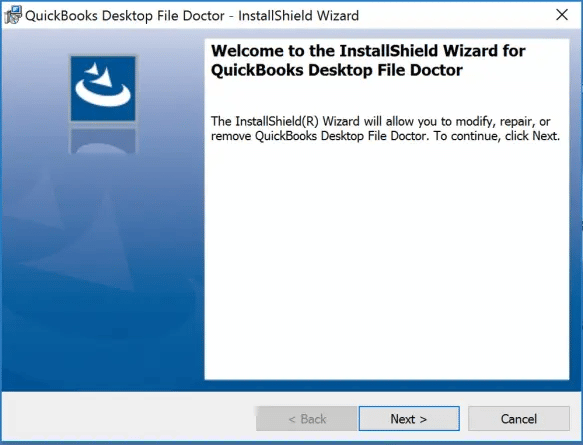
Method 1. Use the QuickBooks File Doctor from tools hub program
Select the Reset Update box and then click the Get Updates button
Close the program and re-run it to allow the automatic installation of the downloaded updates.
Method 4. Stop the QBW32.exe Process
Firstly, close the QuickBooks processes in the Task Manager.
After that, launch the task manager by pressing Ctrl + Shift + Esc keys simultaneously.
Now hit a click on the Processes tab.
Select the QuickBooks processes (e.g., QBW32.exe, qbupdate.exe, and QBDBMgr.exe) one by one and hit on the End Process button.
Method 5. Scan the computer for Malware
Error 6176 in QuickBooks can also result from corruption caused by malware/viruses. Malware can cause runtime issues that, in turn, lead to file deletion and corruption. As such, users should frequently check for viruses and malware on the system and get them removed at the earliest.
Method 6. Perform a Clean Install QuickBooks
If the methods here-to-fore fail to provide a respite from QuickBooks Error 6176, then the ultimate solution to this error is possible by clean installing the QuickBooks program, the steps for which are discussed below. You can also conform to the QuickBooks Clean Install Tool to uninstall and re-install QuickBooks Desktop. Below is discussed the manual process:
Head to the Control Panel from the Start menu.
Choose Programs and Features.
Opt for QuickBooks and click on Uninstall/Change.
Now, click on Uninstall.
The next step involves renaming the QuickBooks folder.
Once that is done, reinstall QuickBooks Desktop from Intuit or use the original CD to install the program.
Use the correct product and license keys to register the program.
Method 7: Run the computer in the Safe mode
To diagnose any technical issue caused by the background applications, the user need to switch to Safe Mode with Networking option and then run QuickBooks desktop to check if the error is still persisting in this safe mode as well.
Hit on the “Start” menu and type in “Config“.
Now, click on the “System Configuration” to open it.
Upon opening it, click on “Selective Startup and Load Services“, followed by hitting Enter key.
Reboot the computer and keep tapping the F8 key until the Advanced Boot Options appear on the screen.
Opt for Safe Mode with Networking and hit Enter.
If the running error doesn’t show up in Safe Mode, then open the Control Panel and uninstall any related programs, as they may conflict with QuickBooks functionalities.
Final Words
This article offered multiple methods to troubleshoot QuickBooks error 6176 while also discussing the various causes that may provoke this error. For timely redressal of all client queries, our experts work round the clock. If you are facing any other technical hindrances in QuickBooks, you can connect with our QuickBooks error support team via the U.S based helpline i.e., 1-888-368-8874.
The accounting software QuickBooks gives its users several tools and improvements for managing their finances. It makes financial reports more straightforward and efficient. As a result, it has helped it become the leader in the accounting software market. But, unfortunately, it has bugs and errors.
What is QuickBooks Crashing Error?
A QuickBooks crashing error will cause the program to crash, freeze, or hang without any input from the user. This issue may have been brought on by several factors, including file corruption, improper or incomplete installation, etc.
You know how much you and your work suffer if your QuickBooks desktop 2023 keeps crashing. This problem can be very frustrating and cause the end user a lot of trouble. But there’s no need to worry because we have a handy troubleshooting guide with everything you need to know about why QuickBooks keeps crashing and how to fix it.
Methods to Resolve QuickBooks Desktop 2023
Method 1. QuickBooks Tool Hub
Downloading QuickBooks Tool Hub
Download the latest version of the QuickBooks Tool Hub and double-click on the “QuickBooksToolHub.exe” file
This will lead to the installation process; follow the prompts as guided
Proceed by agreeing to the terms and conditions and entering the required details
Now, the tool will detect the problem itself and resolve it. Check it by launching the application once done.
Quick Fix My Problem
Open the QuickBooks Tool Hub and the “Program Problems” tab
Locate “Quick Fix My Program”
Choose it and follow the prompts as instructed
Launch QuickBooks with your data file
It will launch and detect the issues itself
Quick Fix My File
Locate the “Company File Issues” option and choose the “Quick Fix My File” tab
Run it and ensure that it detects the issues
QuickBooks File Doctor Tool
Locate the QB Tool Hub and choose the “Company File Issues” option
Run the application, and it will detect the file with damages
Select “Check Your File and Network” and click “Next.”
This tool will repair the QB file when found corrupted with issues.
Method 2. Modify the Names of QBWUSER.INI File
Go to the directory folder on the computer’s C drive
Locate the folder with the .ini extension
Find the file named QBWUSER.INI and select “Rename.”
Add .OLD at the end of the file name
Click on “OK”
Now, alter the name of the DataStore.ecml file
Next, restart the system and check if the QuickBooks desktop 2023 is working correctly.
Method 3. Reboot the Software and System
Close all operations in QuickBooks
If the system hangs, the mouse and keyboards do not take the input, then switch off the design from the power button.
Once on again, navigate toward “Start” and shut it down
When done, reboot your computer after taking a short break
Now, access the QB application and check if the problem persists
Method 4. Alter the Extensions .TLG and .ND Files
Navigate the company files .TLG and . ND files
When done, right-click and navigate “Rename.”
Now, add.OLD at the end of their names. Doing this will make create a new file which will be error-free
Again, launch the QB application and check if the problem is resolved.
Method 5. Suppress QuickBooks Desktop
Hold the Ctrl key of your keyboard and simultaneously open the QB desktop app.
Keep holding the Ctrl until the “New Company Open” window is not opened
Once opened, choose the company file according to the need
Next, press and hold the Alt on your keyboard and select the “Open” tab
Once the dialog box prompting your username and password appears, release the key from the keyboard and input the information
Again, press and hold the Alt key until the company file is opened completely
Method 6. Verify and Rebuild Data Utility
Open the QuickBooks desktop application.
Navigate towards the “File” tab and choose the “Utilities” option
Select the “Verify Data” tab
Launch and run it
It will detect the errors in the app; once done, locate “File” and go to “Utilities” again.
Launch and run the rebuild data utility tool, which will troubleshoot QuickBooks desktop 2023
Method 7. Clone Company Files to the Desktop
Create a new folder on the desktop
Go to the current location of the company files
Create a clone of those files and navigate toward the new folder created, and “Paste.”
Hold the Ctrl key on the keyboard.
Once the “No Company Open” window appears, release the key
Select the “Open or Restore an Existing Company”
Click on “Next” once the company file opens
Once done, navigate to the new folder to open it
Method 8. Repair the QB Desktop
Navigate towards the “Control Panel” and choose the “Programs and Features” option
Locate the “Uninstall/Change the Application”
Locate the QB desktop and select it
Then, choose “Uninstall/ Change.”
Next, click the “Repair” tab and let the program resolve the problem.
Once done, reboot the system.
Method 9. Clean and Install
Uninstalling QB Desktop
Locate the “Control Panel” of the computer and select the “Programs and Features” tab
Select QB application from the list of programs
Navigate toward the “Uninstall/Modify” tab
Choose “Uninstall” and hit “OK.”
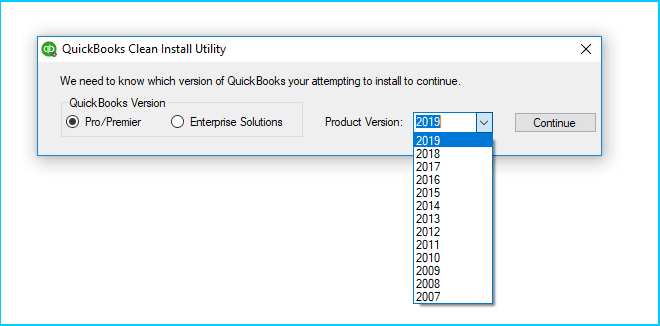
Download Clean Install Tool
Download the Clean Install Tool from the official website
Follow the prompt instructions as guided
Let the application run; it will detect the problem itself and fix QuickBooks desktop 2023
Reinstall QuickBooks Desktop
Download the QuickBooks installation file
Store it in an easily accessible location
Select the “QuickBooks.exe” file
Follow the guided prompts
Enter the asked important information like license, service keys, etc.
Agree to the terms and conditions asked
Now open the QuickBooks application again and check if the problem persists.
Method 10: Remove Antivirus
If antivirus software or other external programs are causing QuickBooks to crash, it is recommended that they be disabled. Anti-virus software may flag some QuickBooks updates or patch releases as malicious software. Their removal follows this before being used. To disable the antivirus, navigate to the settings menu.
Method 11: Remove the Windows Firewall from QB
Go to the “Start” menu or “Task Manager.”
Search for “Windows Firewall” and choose “OK.”
Click Settings.
From the pane in the left pane, turn “Windows Firewall” on/off.
Now, disabled for public and private networks.
Once done, restart the computer and launch QB to see whether it crashes.
Method 12: Do SFC and DISM Scans
Initiate by navigating the “Start” menu and entering the input “cmd” for Command Prompt.
Ensure to do this by running the computer as an administrator
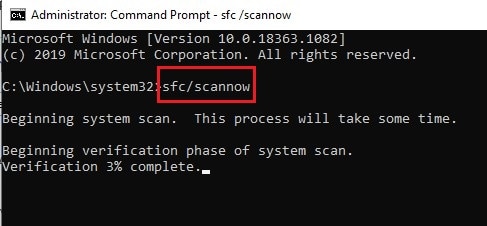
When the command prompt opens, input SFC/Scannow after C:\windows\system32>
Wait for the scan and launch of the QB application again to ensure the problem is finished.
Bottom Line
This comprehensive explanation of the QuickBooks desktop 2023 should help resolve the issue. Unfortunately, this blunder is possible for any of the causes mentioned above. However, the mistake can be fixed if you follow the troubleshooting procedures and techniques appropriately. In case you face any problems you can contact our QuickBooks error support team.
Error 15270 is a technical error that generally appears when one is updating QuickBooks payroll. This update error belongs to the 15xxx series of QuickBooks error codes. Other error codes in this family include QuickBooks Error 15263, Error 15221, including a vast array of other errors. While these errors have more or less the same sources, their solutions may differ. Within the ambit of the current blog, we shall unravel the different strategies that can help in the effective resolution of QuickBooks Payroll Error 15270. So, keep reading!
An Overview of QuickBooks Error Code 15270
Error codes during the update process are not new for users. Users may encounter different errors in the 15xxx series of error codes. These include Error code 15241, 15240, 15102, 15215, etc. Among these errors, QuickBooks error code 15270 has been observed by users on a large scale. This error is mostly seen during the update process of QuickBooks payroll and usually comes as
“Error 15270: The update did not complete successfully. The update is missing a file”.
In the current article, our aim is to uncover the signs, causes, and troubleshooting methods to fix QuickBooks payroll error message 15270. So stay tune till the end!
Why does QuickBooks payroll error 15270 occurs?
Several reasons can provoke update error 15270 when initiating QuickBooks payroll updates. These include:
The internet connection was interrupted during the update.
Multiple QuickBooks processes run simultaneously alongside the update process.
The computer is infected with a certain virus.
Disabled FCS can be a major contributor of this error
Payroll updates are incompatible with the Windows version.
You may have entered an incorrect Service Key or Employer Identification Number (EIN).
Internet Explorer has not been set as the default Internet browser.
Noteworthy Signs and Symptoms of QuickBooks Payroll Error 15270
Users can experience the following signs that act as harbinger of this QuickBooks problem:
Unable to update QB payroll and the program immediately crashes when going for the update.
System experiencing major glitches when running QuickBooks.
The error message revealing the error appears during the update process.
Fixation of QuickBooks Error 15270: Payroll Update not Completed Successfully
The following set of solutions can help fix this QuickBooks payroll update error 15270 without any technical complications or arduous efforts.
Solution 1: Make I.E the Default Internet Browser
One main cause of this error could be using a web browser other than Internet Explorer. Using Edge Browser instead of Internet Explorer can also lead to this error as it is unsupported by QuickBooks. The procedure for making Internet Explorer the default browser is as follows:
Open Internet Explorer from the Start menu.
On the top right corner, tap on the gear icon.
Now, select InternetOptions.
Select Make Default under the Programs tab.
After that hit a click on Apply.
Now hit a click on OK tab.
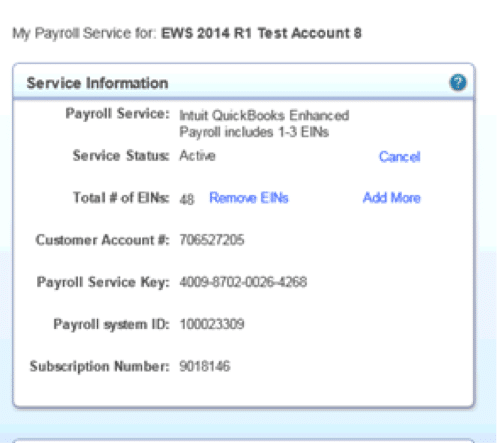
Solution 2: Verifying the Payroll Service Key
An incorrect Payroll Service key could also be a cause of this QB error code 15270. As such, it is prudent that users double-check the Service key. The procedure below should help:
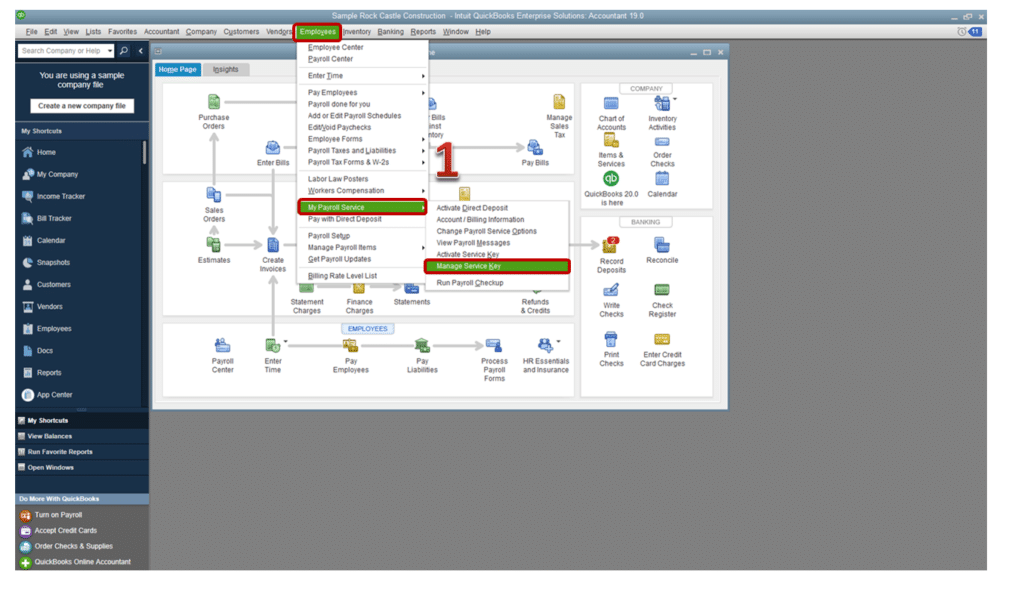
Run QuickBooks and advance to the Employees tab.
Head to My Payroll Service.
Select the Manage Service key option.
After that click on Edit once you see your payroll service listed under the QuickBooks Service Key window,
If no payroll service is seen in the window, click on the Add option.
After clicking on Edit, note down your Service Key, and click Remove.
Net, click on Yes on the confirmation window.
After removing the Service Key, click on the option to Add.
Enter your EmployerIdentification Number (EIN) and the Service Key.
Then click on Next and then hit on Finish.
Now, tap on OK on the Payroll Update Window.
Also, check the payroll subscription status. It should be showing an Active status.
Solution 3: Run QuickBooks Reboot.bat file
First, the QuickBooks Desktop application exists, and right-click the QuickBooks icon on the desktop.
After that select Properties and then click on Open File Location.
Right-click on the Reboot.bat file in the QuickBooks folder.
Tap on Run as Administrator.
Now, wait till all the QuickBooks files are registered.
Restart the computer once the DOS window disappears.
Hit on Reset Updates and, followed by that, click on Get Updates.
Press the OK tab and confirm the reset.
Now message stating “Update Complete” displays on the screen.
Now, restart QuickBooks and check the Error 15270 in QuickBooks Payroll has been successfully fixed
Solution 5: Repairing QuickBooks Desktop
The initial process requires the user to open the Control Panel and then make a move to Programs and Features.
Herein, opt for QuickBooks in the list and then tap on the Uninstall/Change tab.
Follow up by clicking on Next, and hit on the Repair button.
The repair process is time taking in most of the cases. Once it is done, restart the system and then run QuickBooks again. Now, try to update the accounting program.
Solution 6: Activate the Subscription
In case of Standard Payroll, Enhanced Payroll, or Basic Payroll:
First of all, hit a click on the Employees tab, then select the My Payroll Service tab.
After that hit a click on Account/Billing Information.
Visit the page of QuickBooks Payroll Account Maintenance and check if the subscription is active.
If the payroll subscription is “inactive or expired”, just renew it and then try the update again.
Note: In order to check whether the payroll subscription is Active go to ‘QuickBooks Payroll Account Maintenance’ page by logging to your Intuit Account.
In case of Assisted Payroll:
At first, go to the Employees tab and choose My Payroll Service option.
After that go to the Account/Billing option and then select Account Info/Preferences tab.
Once the QuickBooks Payroll Account Maintenance page open, you need to close the display to check the update & re-validation of payroll service.
In case you are using Social Security numbers, despite having an Employer Identification Number, or if you haven’t entered the Service Key, ensure you have all the elements in QuickBooks.
Solution 7: Disable User Account Control (UAC) Temporarily
UAC handles the permissions related to different programs running on the computer. Disabling it may resolve Error code 15270 in QuickBooks. The steps involved are:
Open the Control Panel.
Go to the User Account Settings.
Click on the option to Change User account control settings.
For the User Account Control to be turned off, move the slider to Never Notify.
Restart the computer, and try updating the payroll.
Upon updating the payroll, re-enable the UAC.
Solution 8: Perform a clean installation
Advance to the Control panel, and therein head to the Programs and Features tab.
There, the user should opt for QuickBooks, and following that, click on Uninstall/Change.
Proceed with the Uninstall button and follow up with the instruction carefully to accomplish the uninstall process.
When all is set, run QuickBooks, and try updating QuickBooks again.
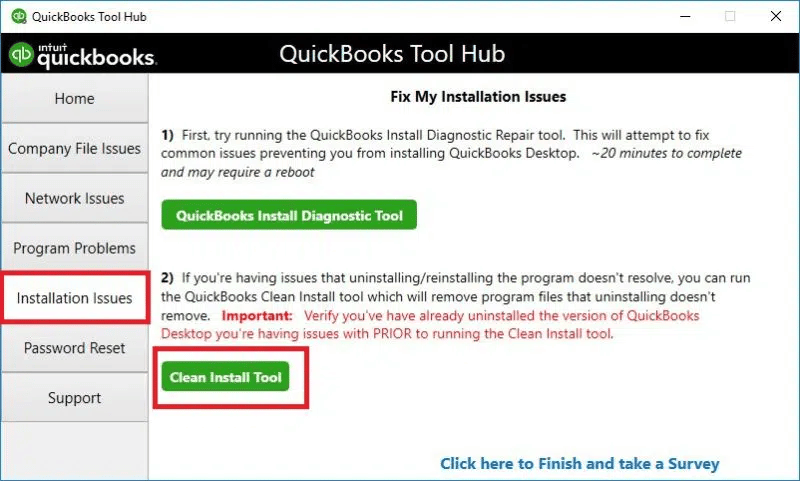
Solution 9: Using QuickBooks Install Diagnostic Tool in QuickBooks Tools Hub
“QuickBooks Tool Hub program” is an incredible hub of tools that can resolve different errors persisting in the QuickBooks program. One notable tool is the “QuickBooks Install Diagnostic tool”. This tool can repair most of the errors included in the Error 15xxx series, including the Update Error 15270 in QuickBooks desktop.
The first step is to “download QuickBooks Tool Hub from Intuit”.
Now, install this tool and when done, run it to visit the “Installation Issues tab”.
The tool will automatically diagnose and resolve any technical issues that trigger such error.
Now, give the update process one more try to make sure the ongoing error is no longer occurring.
Solution 10: Use Quick Fix My Program Feature
If the Install Diagnostic tool couldn’t fix the error, then try the Quick Fix My Program feature in the “Program Problems” tab of the “QB Tool Hub”.
Conclusion
Concluding this blog, this discussion subsumed all the updated set of troubleshooting methods that can help in the easy fixation of QuickBooks error 15270. If the error persists even after you’ve tried all of the solutions enumerated within the ambit of this blog, get in touch with the QuickBooks error support team via 1-888-368-8874.
QuickBooks Desktop is a widely used as accounting application, typically deployed at the small and medium business levels. It has revolutionized how organizations handle the accounts department and components pertaining to the effective management of finances. Notably, the company file constitutes the nucleus of all accounting operations in QuickBooks, and any technical error encountered while opening or modifying it can be extremely annoying.
One common error users may stumble upon when opening the company file is QuickBooks Error: -6000, -77. This snag belongs to a broad spectrum of 6000 series of error codes. In this segment, we are going to discuss about this error and also it’s solution methods. Thus, keep reading ahead!
What are QuickBooks Error Codes (-6000, -77) and why it occurs?
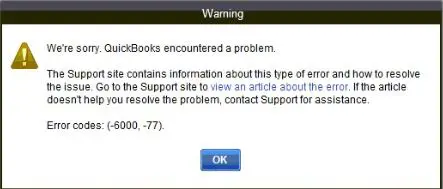
Error 6000 77 is a company file error and comes in 6XXX series of errors in QuickBooks desktop. It generally appears with an incorrect location of the company file. This error may also occur due to a limited authorization or due to corrupted company file. Through this segment today, we will discuss about the various causes, symptoms, and troubleshooting methods to aid readers in the process of fixing QuickBooks error code 6000 77. Thus, we request you to stick with tis post till the end! You may get the following error message on the desktop screen:
Warning
Description
Error
We’re sorry. QuickBooks encountered a problem. Error codes: (-6000, -77).
What are the reasons behind QuickBooks Error 6000 77 when Opening Company File?
Here are some very common reasons that can cause the 6000 77 In QuickBooks:-
Now open the tool hub program and click on Company file issue tab.
Here you need to select Run QuickBooks File Doctor option.
Moving ahead, hit on the Browse button and choose the affected company file.
Then scan the file using the file doctor tool and allow the tool to make any changes.
Once the file doctor completes the task, restart your QuickBooks desktop and try again to open the same company file to check for the effectiveness of the method in resolving the ongoing error.
Method 3: Change the .TLG and .ND File Name extensions
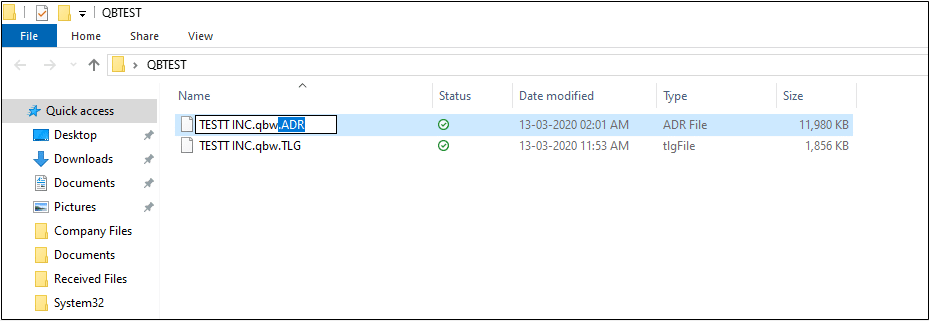
Initially you need to open the folder which has QB company file or visit the following location – “C:\Users\Public\Public Documents\Intuit\QuickBooks\Company Files.”
After that, look for the files with the exact name of the company file, but with the file extensions “.TLG” and “.ND.”
Now hit a right-click on these files and tap on “Rename” option.
Add “.OLD” at the end of the .ND file.
Perform the same steps for .TLG file which is also in the same folder.
Once done, restart your QuickBooks. The .ND and .TLG files shall be recreated on the folder.
Lastly, try to open the company file again.
Method 4: Repair the Windows Firewall and Antivirus Settings
The firewall protects your computer from malicious software and potential online threats. Because of the potential network related-interference caused by the Firewall, QuickBooks need to be exempted from the Firewall. This can also rule out any obstruction instigating QuickBooks error message 6000 77. Procedure for the same is discussed below:
In the first step, you need to go to the Start menu and type Windows Firewall.
After that open the Advanced Settings corresponding to the Firewall.
Then right-click on Inbound Rules and choose New Rule.
Moving ahead, you need to navigate to the Programs option and hit a click on Next tab.
Also, hit a click on Program Path tab and then hit on Next.
In the next step opt for the QBW.exe file and move forward by hitting on Next tab.
Once done with this, hit a click on Allow the Connection tab.
Mark all checkboxes of the profiles.
Now, create the rule and change its name to QBFirewallException(name.exe)
You need to follow the same procedure for the Outbound Rule.
Once done with the changes, reboot the system and check if the error is resolved. If not, move to the following method.
Method 5: Open QuickBooks in the No Company Window
Opening QuickBooks Desktop in the No Company Window can alleviate the Company file error 6000 -77 in QuickBooks. Directions for the same are given below:
You need to hit a right-click on the QuickBooks desktop icon and tap on Run as Administrator.
After that, in the No Company window, you need to select the company file.
Proceed by holding the Alt key on the keyboard and hitting on Open. Release the Alt key only when the company file opens.
Method 6: Removing Blank Spaces From the File
The company file’s name should not contain any spaces. This solves many accounting errors, including the company file error 6000, 77.
Log out of the QB software on desktop where company file is saved.
Go to company file folder and right click the file in the folder where it is saved.
Now, go to the company file and select the “Rename” tab after clicking right on it.
Correct the file name, remove spaces and then press enter to save changes.
Method 7: Initiate SFC Scan
System File Checker (SFC) can fix diversified errors in the system as well as QuickBooks. The following steps must be taken to use the tool:
Launch the command prompt window through the Runwindow.
After that press Windows + R keys to open the run window.
Once opened, input SFC/scannow and press Enter key.
The system file checker scanning will begin and take around five to ten minutes to complete.
Wait for a few minutes for the scan to finish
Once scanned successfully, check the QB desktop application to see if it’s corrupted or resolved now.
Method 8: Perform a Clean Install
The Clean Install Tool can be executed by following the below instructions:
Launch the QuickBooks Tools Hub program and navigate toward Installation Issues.
After that you need to tap on Clean Install Tool and use it to uninstall QuickBooks desktop.
Now let the tool run for few minutes. This tool will automatically uninstall and then re-install it.
Method 9: Use UNC path rather than mapped drive
Press and hold ctrl key while you right click QuickBooks icon to prevent company file from opening automatically.
After that hold CTRL key and click “run as administrator” option.
Now release ctrl key once you see No Company Open window.
Click Open or Restore Company option.
Browse and select company file and then the open button.
Method 10: Update QuickBooks Application
If none of these options work check QuickBooks version that you have and see if any updates are available. Outdated version also messes with the opening of company file. You can proceed with following steps –
Open your QuickBooks desktop, after that go to Help menu.
Moving ahead, select Get Updates and follow the on screen instructions
Once updated check if the error persists.
Final Words
The QuickBooks error 6000 77 is not difficult if you can follow these above step by step process. If you need further help you can call us through our 24X7 helpline i.e., 1-888-368-8874. Our QuickBooks error support expert team at Axpertadvisors is always here to help you. All you need to do is tell us your problem and we will get it sorted for you.

























 +1-888-368-8874