Learn how to fix QuickBooks Error 1334 and prevent this technical snag from reoccurring:
Have you received any of the following errors while installing, updating, or using QuickBooks accounting software? Well, this is an installation error that generally occurs when there is a problem with the installation process or when a file that is required for installation is missing or not able to found. This error typically appears with the following error message:
Error 1334. Error writing to file [File Name]. Verify that you possess access to that directory.
Error 1334. The file can’t be installed. Insert the QuickBooks CD and retry.
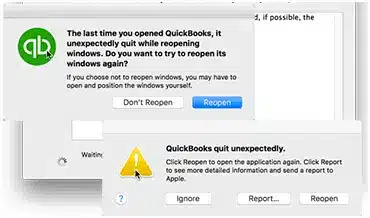
These error messages denote that QuickBooks has encountered a technical issue that forces it to shut down immediately. There may be other signs indicating this error – such as the computer getting slow, or giving no response to commands through keyboard and mouse, crashing of the current program on the software, etc.
What Does QuickBooks Install Error Means?
QuickBooks Install Error 1334 is among the most common errors observed by QuickBooks users and may be observed at any time. Despite of this, you don’t need to worry about this error a lot as it’s easily fixable if you know the right set of solutions to perform for its rectification. This blog post will elaborately discuss the varied causes and solutions of this problem. So, read on!
Chief causes leading to QuickBooks Error 1334
To fix any type of QuickBooks error, it becomes pertinent for the users to know the various causes triggering them. In the case of QuickBooks Error 1334, the possible causes are given as under:
Your computer might be infected by a Virus or Malware, which may have also affected your QuickBooks files.
While freeing up the system space, user may have accidentally deleted some important QuickBooks files.
Windows Registry files may have some corruption.
QuickBooks files may be damaged due to certain corruption or data damage issues.
Different Methods to Troubleshoot QuickBooks Error 1334
Now that you know what may have caused this issue, you can go for the implementation of the various troubleshooting steps to fix it. In this section, we have described some of the most reliable solutions to fix QuickBooks Install Error 1334 after consulting our certified QB experts. Log into your accounting software as an admin and try these solutions individually in the order provided.
Solution 1: Perform a Clean Install of QuickBooks Desktop
Before you perform this solution, ensure that you have created a backup copy of all your essential files, so you don’t lose them.
To kick start the process, hit the Start button and then head to the Control panel.
Herein, you need to choose the option to uninstall QuickBooks.
64-bit version C:\Program Files (x86)\Intuit\QuickBooks (year).
After renaming the folders, install QuickBooks Desktop. Check if this troubleshooting step has resolved your error. If the error is not yet compromised, try the following solutions, as they may also fix this QuickBooks error. Malware and other infections as well may cause Install error 1334.
Run a complete antivirus/ malware scan of your system and fix any contagious files detected.
After that, perform a Disk clean operation and remove temporary files.
See if your computer is up to date and does not install any available Windows updates.
Keep your QuickBooks updated and of the latest version.
Solution 2: Manually fix Microsoft .NET Framework errors
There is also an avenue of resolving the error 1334 in QuickBooks by yourself. To do this, you don’t need to be technically proficient; all you will need to do is follow the below-given directions. So, let us head forward and implement the manual troubleshooting procedure.
For Windows 11, 10, 8.1, and 8 users
The initial step is to close all the open programs from your system.
After that, visit the Windows Start menu.
The next step is to type ‘Control Panel’ into the search bar and then launch the Control Panel.
Then, navigate to the Programs and Features.
Now, choose to Uninstall a Program option here.
The next step is to turn Windows features on or off and find .NET Framework on the list.
Choose Microsoft .NET Framework 4.5 (or a later version) in the Programs and Features window.
You need to click on it and then choose the Uninstall/Change tab.
Also, choose Repair and then hit on the Next tab.
You need to follow the on-screen instructions.
Restart your computer once the repair process finishes.
For users working On Windows 7
Initially, shut down all the open programs.
After that, open the Windows Start menu.
You need to type ‘Control Panel’ into the search and then access the Control Panel.
After then, choose to Uninstall a Program.
Now you need to Turn Windows features on or off and search .NET Framework in the list.
Here you need to visit the Programs and Features window, and then choose Microsoft .NET Framework 4.5
Now, tap on Uninstall/Change.
Next, you need to choose the Repair option and then hit click on Next tab.
Follow the screen instructions till the end.
Lastly, reboot your system.
You need to verify the settings for both .NET Framework 3.5 SP1 and .NET Framework 4.5 (or later).
Solution 3: Accessing your PC in safe mode
When you access your system safely, you are assured that all the background processes/programs are closed. As such, you can assess whether the error is caused due to some conflicting program running in the background. However, if the error still pervades, it indicates that there may be some other cause for this error. Implement the steps below:
In the beginning, tap on the Win+R keys together to launch the Run window.
Within the Run box, introduce the word ‘MSConfig’ and follow it by tapping on the Enter key.
Then, head to the ‘Boot‘ Option and visit the Safe Boot option.
Now, sail to the Network option.
Also, hit on OK & opt for the Network option.
Now, you need to reboot the PC. Upon rebooting, on the boot screen, hit on the F8 keyboard function key several times and opt for the ‘Safe mode with Networking’ option.
Then, tap on the Enter key once.
Wait till the Desktop is revealed.
When open, launch your QuickBooks accounting software.
Once open, visit the Help tab.
Now, opt for the Update QuickBooksoption & get the latest updates installed on the system.
Visit the Start Menu by hitting the Windows plus R keys to open the ‘Run‘ Window.
Within the window, type ‘MsConfig.’
Opt for the Safe Mode.
Again, reboot the PC in normal mode.
Access QuickBooks Desktop and install the new release(s).
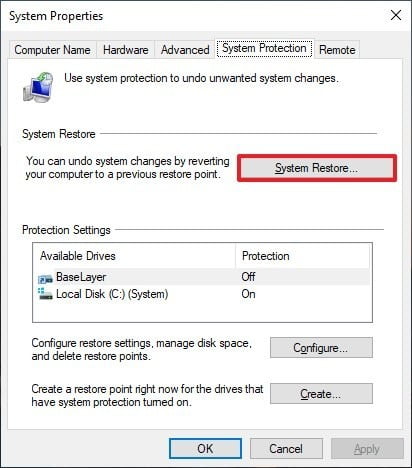
Solution 4: Opting for System Restore is a viable option
Reverting your PC to an earlier period should rectify the QuickBooks error 1334. To do the same, proceed as follows:
To begin the process, access the PC as an administrator.
Opt for Accessories and Programs.
Head to System Tools.
Opt for the option to Restore the PC at an earlier date.
Choose the Restore Point
Visit all the available options and opt for the recent restore option.
Finally, reboot the PC to see if the error 1334 issue got resolved.
Solution 5: Make sure that the QuickBooks Company file extension is verified
Inspecting the QuickBooks extension and checking for its correctness is necessary. Any issue in the file extension can invoke the QuickBooks error 1334. To check the some, follow the instructions below:
To start off, visit the following location: Drive: \Users \Public \Documents \Intuit\ QuickBooks through the Windows file explorer.
Look for your Company File and check if the associated file extension (.qbw) is correct.
If it is incorrect, right-click the file and hit on Rename.
Clear off the wrong file extension and remove the file name having (.qbw) extension.
Finally, launch the QuickBooks software and verify that the error got sorted out.
Let us wind up!
The QuickBooks Install Error 1334 is a common error; luckily, its ramifications aren’t that disastrous or complicated. You can just perform the steps in the above solutions to resume your regular accounting operations without facing the issue. If the problem persists even after trying out the solutions unraveled in this post, you can call our 24×7 QuickBooks Error Support Team at the helpline at 1-888-368-8874 for quick and advanced solutions.
Learn the easy measures to implement when you can’t open company file in QuickBooks Desktop
Need to know the easy way to fix the deadlock caused by an error message encountered while trying to open a company file in QuickBooks? Well, reading this full article can be of great assistance to you for resolving the error that obstructs users from accessing their company files. Many users might not see any warning message related to the issue, but as a result of this error, users might not be able to access the essential functions on QuickBooks, besides being unable to access their company files. There can be a handful of factors causing the issue, which we will discuss in this article, along with the quick troubleshooting steps to rectify them, So stay tuned.
You might see the following error message on your desktop screen:
Error
Description
Can’t Open QuickBooks
QuickBooks already has a company file open. If you want top open another company file, close this one first.
Only QuickBooks Accountant and QuickBooks Enterprise Solutions can open two company files at once.
If you don’t want to perform the steps manually, you can simply get in touch with our professionals using our toll-free line. Our tech team will ensure to come up with the most effective solution.
What Leads to QuickBooks Won’t Open Company File Error?
This QuickBooks company file error prevents you from opening your company file and can thus put a complete dead stop to your accounting operations. The provocative factors for the same are given as under:
One of the primary factors behind this company file error can be the long company file name.
If there is a missing or damaged QBWUSER.ini file, this error code may also pop up.
Another reason can be a corrupted or damaged hard drive.
You can also face similar errors if the program files are damaged.
If the QuickBooks desktop update is pending.
Damaged Windows operating system.
If an incorrect version of QuickBooks is used, you can end up with such an error.
Finally, the error may also be triggered due to a conflicting QBW.tlg file.
Methods to Fix QuickBooks Won’t Open Company File Error
You can perform the below methods to fix the error can’t open QuickBooks company file. Let us check out the methods one by one:
Method 1: Update QuickBooks Desktop
As mentioned above, the error can be seen when the software is outdated. Therefore, you need to update the QuickBooks software whenever any update is available. Here’s how to update the release version:
The first step you need to perform is hitting the Help menu at the top.
After that, choose the Update QuickBooks option.
Next, on the Update QuickBooks window, choose the Update Now tab.
Afterward, check the box next to Reset Update to delete all the previous update downloads.
After that, hit on Get Updates option.
The last step is to reboot your QuickBooks.
Once the completion screen prompts, you need to accept the option to install the latest release.
Method 2: Check the file to be opened
There can be multiple file types in QuickBooks. Thus, you would have to open a company file with a .qbw extension at the end of the filename. You can’t open other file types like backups, and portable files.
Method 3: Find out the cause behind this company file issue
In the first step, it is very much essential for you to visit the Windows start menu.
And then, type in ‘File explorer’ into the search bar to visit the File Explorer.
Also, look for and find the executable file named QuickBooks.exe
This file exists within the QuickBooks folder.
Once the file is located, tap on the Ctrl key and double-tap QuickBooks.exe.
And avoid leaving the Ctrl tab.
Once the software opens up, you need to open the company file. And in case you are not able to open the file, then jump to the following method. Launch the QuickBooks Desktop and avoid accessing your company file. You need to choose to Open a sample file.
If the sample file gets opened, it indicates that the program is causing the problem and not the company file.
Method 4: Turning off hosting on workstations
This method can be avoided if the company file isn’t hosted on a network and you don’t use multi-user mode. You would have to turn off the host multi-user access option. The steps to be followed are:
The very first step is to open QuickBooks on one of the workstations.
The next step is to avoid opening the Company file.
Opt for the File menu and move to the Utilities tab.
In case users see the Host multi-user access option, then it is suggested to avoid tapping on it and head to the Next workstation.
In case the option stating Stop hosting multi-user access is present, then it is recommended to opt for it.
And repeat the same steps on all the workstations.
After that, move the server system.
You will have to first launch QuickBooks on the server system.
And head to the File menu and move to the Utilities tab.
After that, choose the option to Host multi-user access.
And toggle the settings. You should repeat the steps and select Stop hosting multi-user access.
This will Reset the multi-user mode.
The last step is to repeat the process and choose Host multi-user access.
Method 5: Moving the company file
You should copy the company file facing the error and then paste it to another location in your computer, preferably in a Desktop folder. The steps given below will provide you further assistance on how to move the company.
You should first visit the Windows start menu.
And type in ‘File explorer’ into the search bar and access File Explorer.
After that, look for and Find the folder with the company file.
You need to right-click the company file and tap on Copy.
Also, right-click anywhere on the Windows desktop and choose Paste.
You should also right-click the copied company file and opt for Rename.
After the assign a name to the file.
And open QuickBooks and head to the File menu and choose the option to Open or restore company.
The last step is to hit the Company file you copied to the desktop and choose Open.
In case you open the copied company file, then the file location is the issue:
You need to move the Copied company file back to the original folder from the Windows desktop. And use it as the primary company file.
Find the original company file and right-click on it
Choose the Rename option and add the .old word to it.
Method 6: Turn off the save option when ending the feature
In case you are having a large report or several Windows set to open automatically, then it might freeze QuickBooks. To prevent this, you should:
Launch the QuickBooks software.
And in the No company open window, opt for the company file from the list.
Hold alt and tap on Open.
Avoid letting go of the Alt button till the file opens.
After you are able to open the company file, you need to turn off the save when closing feature.
The first step is to head to the Edit menu and choose Preferences.
After that, head to the Desktop view tab.
And choose Don’t save the desktop and hit the OK tab.
The last step is to Close and reopen QuickBooks and access your company file.
Method 7: Check your company file properties
To oust this QuickBooks error, the following alterations must be made in your company file properties.
Initially, visit the Windows Start menu and access the File Explorer tab.
After that, search for and find your company file. It looks like this: [Your company name].qbw.
Hit a right-click on the company file and choose the Properties option.
After that, visit the Advanced tab and uncheck the Compress and Encrypt checkboxes.
Lastly, you need to choose OK.
Try to open QuickBooks as well as your company file.
Winding up!
By the end of this article, we believe that you might be able to fix Error: ‘Can’t open company file in QuickBooks desktop‘. However, if the error continues for some reason, then, in that case, it is highly recommended to contact our QuickBooks error support team professionals at 1-888-368-8874. And let them perform the steps for you.
The QuickBooks error 267 rebuild not working is often seen when the users open an older customer invoice and then view it. When the user tries to close, the dialog box will ask the credential for modification before the closing date.
After performing other activities in QuickBooks, if the user opens the balance sheet, then such an error appears on the desktop screen. If you are also facing this problem, then, in that case, read this article till the end.
What Causes the QuickBooks Error Code 267?
This QuickBooks error code 267 can occur for the following reasons:
The very first reason can be if the balance sheet was not in balance.
If the balance sheet reports do not display all accounts.
If certain discrepancies show up on the report or invoices.
Another reason can be if the sales tax code is missing from the target.
If in case the token headers regarding user referred to null.
Steps to Troubleshoot the QuickBooks Error Code 267
This issue can be resolved using the following methods:
Step 1: Verify the Data
The user needs to first locate Window and click on Close all.
After that opt for the File and choose the Utilities tab.
Subsequently, navigate to the Verify data.
Afterward, the following pointers will show up:
QuickBooks detected no issue in the data. Also, no further action needed.
The very first step is to opt for the file and then hit on the Utilities tab and opt for Rebuild data.
After that, you will get a warning message.
Hit the OK tab.
Later on, take a backup before performing a rebuild because it might include deleting the process of transactions, invoices, or list entries to fix the issue.
The company file backup ensures that you have a secure company file.
Afterward, Locate and opt for the location where you wish to save the backup file.
Hit on the OK tab.
Choose the No option if you are asked in a dialog box that you wish to replace another backup file.
The next step is to provide a new name in the field of the file name.
Hit on the Save tab.
After the backup fails, choose to Cancel at the prompt named rebuild, or you can seek Payroll help desk support for advice.
The backup of the rebuild data utility begins.
Opt for the OK tab.
Step 3: Verify the Left Damage of Data
The user needs to first locate the file.
And then hit the Utility tab.
The next step is to opt for the Verify data option.
In case found, any extra damage that specifies damage needs manual correction. The user would have to locate the issue within qbwin.log and find the resolution accordingly at the QuickBooks desktop official support site.
If not, then the user needs to Restore a backup that you created previously.
Move to the File and then hit the Restore tab.
When restoring, ensure that he/she doesn’t overwrite the Existing company file.
The user can manually re-enter the entries.
Step 4: Remove the Error 267 by Deleting the Invoice and Creating a New One
Since a damaged invoice is usually the root cause of QuickBooks error 267, it’s imperative that you delete the incorrect Invoice and start over.
On the QuickBooks screen, find the Invoice that is having this problem.
Hit on the More button at the bottom of the screen to open the Invoice window.
Then, tap on the Delete key, then choose Yes to confirm your choice.
The erased Invoice must then be recreated.
Choose Audit Log from the available options by hitting on the Gear symbol up top.
Hit on “Show only these events, Transactions” under Filter after tapping on it.
Afterward, hit on the “Deleted transactions” and then choose OK.
Locate the Invoice that you removed, then hit on the View tab in the History section.
To duplicate the Invoice, make a note of its specifics.
When you tap the + New button, hit on Invoice.
Hit on Save after entering all the necessary invoice information.
Winding up!
Reading this post till the end might have helped the user in fixing the QuickBooks error 267 successfully. But if the error continues for some reason, then in that case, it is suggested to get in touch with our 24X7 QuickBooks error support team professionals and let them perform the steps for you.
Ended up with the QuickBooks desktop error 6177 and don’t know what to do? If that is the case, then reading this article can be of great assistance for you. This error can be seen with an error message that states “QuickBooks is attempting to open this company file”.
This type of error indicates that the software is unable to use the path to the company file. Moreover, it is also seen when a user uses QuickBooks in multi-user mode. At the time when the user tries to access the company file, the error pops up on the screen successfully.
To know more about the process of how to fix QuickBooks error message 6177, 0, keep reading this article ahead is suggested. Or you can also contact our team professionals and let our team will ensure to provide you with immediate tech assistance.
What leads to QuickBooks error code 6177?
One can end up in the QuickBooks error message 6177 due to the following reasons:
One of the major reasons can be if the system files mistakenly deleted that are related to QuickBooks.
Another reason can be if there is any virus or malware attack.
If the QuickBooks desktop doesn’t use the path to open the company file.
One can end up with this issue if there is an incomplete installation or corrupted download.
Viable Solutions to Resolve the QuickBooks Error Code 6177
The user can try to fix the QuickBooks company file error 6177, 0 by performing the solutions below:
1stSolution: Update the file location
In case the user keeps the company file on a server, an external hard drive, or in the cloud, the user should change its location. Just perform the steps below to move it to the local drive back again to where it was.
Step 1: Moving the company file
You are required to perform the following steps on the server system. In case the user doesn’t have the access to it, then it’s fine. You can also follow the steps on one of the workstations.
Initially, open the Windows start menu on either the Server system or workstation.
Afterward, type in File Explorer into the Search and open File Explorer.
The next step is to Search for and open the QuickBooks folder. Tap on the F2 key.
Find the company file that ends with .qbw extension.
You should now write down the Drive name and location. The user will put the file back here later on.
The last step is to Move the company file from the folder to C: drive and move the file, not the whole folder.
Step 2: Make a portable company file and restore it to the server
The initial step is to open the QuickBooks desktop on the system to which the company file is moved.
And then, choose Open or Restore an existing company.
The next step is to Browse for and open the company file you moved to C: drive.
Create a Portable company file. This will create a portable version of the company file that also resets the file location data.
Now, choose the File menu and opt to Quit QuickBooks.
After that reopen QuickBooks.
And move to the File menu and choose Open or restore company.
The next step is to hit on the Restore a portable file and opt for the Next tab.
After that, find and select the Portable company file you created.
And also choose the Open and Next tabs.
To restore location, opt for the Drive originally moved the company file from.
Hit on Save. This will put the company file back on the network.
Choose the File menu and opt for Quit QuickBooks desktop.
2ndSolution: Update the QuickBooks desktop
In case the user hasn’t updated the QuickBooks desktop yet, then it is suggested to update QuickBooks immediately.
3rdSolution: Reopen the QuickBookssoftware
Initially, launch the QuickBooks desktop.
After that opt for Open or restore an existing company instead of choosing a Company from the list.
Next step to pick the Open a company file option and then hit on the Next tab.
Now open the Portable company file (QBM) that you have moved to the new folder.
4th Solution: Reset multi-user hosting
In the beginning, open QuickBooks on your server computer.
Afterward, choose the File menu and head to the Utilities option.
Next, choose Stop Hosting Multi-User Access and then hit on Yes to confirm it.
Then, choose the File menu and opt for the Quit QuickBooks option.
Thereafter, open your QuickBooks again, (Note: It should be noted that you do not need to open your company file)
Afterward, hit on the File menu and proceed to the Utilities option.
The next step is hit on the Host Multi-User Access option and Yes to confirm.
Lastly, hit on the File menu and then choose Quit QuickBooks option.
5thSolution: Manually fixing the file path
Step 1: Process to Locate the .ND file
The first step is to open the File Explorer on the server system and look for the QuickBooks folder.(File Explorer can be accessed by tapping the Win + E keys together).
After that, Find the file with the Company name and .ND at the end.
Also, right-click the ‘.ND’ file and choose the Delete tab.
After that, open the Windows Start menu on the server system.
Later on, type in ‘Database’ into the Search and open QuickBooks database server manager.
Choose the QuickBooks folder holding the company file.
Afterward, hit on the Start scan and also opt for the Close tab.
Set the folder permission to share the company files.
Summing Up!
By now, you might be able to fix the QuickBooks error 6177, 0 successfully. However, if the error persists for some reason, then in that case it is highly recommended to reach out to our Axpert Advisors team professionals at 1-888-368-8874, and let them rectify the issue on your behalf.
Our experts have years of expertise and have offered indomitable support services to clients all around the globe. To complement the foregoing lines, we can be reached 24/7.
These 4 solutions will help you fix QuickBooks Desktop Crashing Error when Exporting Report to Excel Worksheet
QuickBooks is an innovative accounting and bookkeeping software. Its developers keep introducing new features and updates to keep it free from technical glitches and sluggishness. The users, however, do find the software crashing in some instances. A common instance is when reports are being exported from QuickBooks to excel. QuickBooks accounting software may just crash or stop responding. There may be multiple reasons causing the QuickBooks desktop crashing error, which may hamper the software’s performance and hamper the users’ productivity.
Some of the instances when you may receive this error are:
When you try to send an email or invoice
When you open or update the QuickBooks company file
QuickBooks Desktop Crashes When Exporting To Excel – Plausible Causes
The older versions of Microsoft Excel support 256 columns and if your reports have more columns – the export will not be successful and QuickBooks may crash. Below are some of the most common reasons behind QuickBooks Desktop Working Error:
The QuickBooks version you are using isn’t compatible with Microsoft Excel.
The installation of either QuickBooks or MS Office is corrupt or damaged.
Your data or report may be problematic and thus you are facing trouble in exporting to Excel.
File registry is not functioning appropriately.
Solutions Steps for Fixing QuickBooks Freezes During Exporting to Microsoft Excel
You can fix QuickBooks Desktop crashes when exporting report to Excel worksheet Error by looking into its causes. Following are some steps to fix this error:
Solution 1: Check if MS Office is Compatible With the QuickBooks Version you are Using
If QuickBooks desktop software is crashing because of the incompatible application and MS Office, you should fix the compatibility issue. For example, if you are using QuickBooks 2016 (or a later version), check the system requirements to avoid any compatibility issues later. Make sure that you have Windows 10 installed with the 64-bit edition. If you receive the QuickBooks crash error again, move on to the next solution.
Solution 2: Update QuickBooks to the Latest Version
Navigate through the main menu and press “Update QuickBooks
Allow the update process to finish
Make sure that your Internet connection is stable before you start the update process.
If the issue persists, try the next solution.
Solution 3: Repair QuickBooks Desktop
Keep the QuickBooks Desktop Installation CD closed before you start repairing QuickBooks Desktop. You must also back up your company file so that you don’t lose your important data while solving the QuickBooks crash error. Once you are prepared, go to Programs & Features in QuickBooks and uninstall any unwanted program.
Opt for QuickBooks and tap on the Uninstall/Change option. Follow the instructions you receive on the screen until the repair process is over. If QuickBooks Crashes again while exporting to excel, even after you have followed all the above-mentioned solutions, use Verify and Rebuild Data Utility.
Solution 4: Use Of Verify & Rebuild Data Utility
This QuickBooks utility helps you to determine if any data damage exists in your QuickBooks company file. Rebuild Data helps you fix many of the common data damages in QB and carry on with your work. After using the Rebuild Data tool, you should run the Verify Data to ensure that all the damages have been repaired.
While you may have to perform all the solutions mentioned in this post to fix QuickBooks desktop crashes error, you must also ensure that the QuickBooks software you are using is updated to the latest version. Also, close all the applications before you instigate fixing this problem.
Summing Up!
This was all about the QuickBooks Desktop crashing issue and the various avenues of rectifying the issue. We hope that you were able to get rid of QuickBooks crashes while exporting reports to excel using the solutions provided in this article. In case the issue persists even after performing the troubleshooting steps herein, you may contact our 24×7 QuickBooks error technical support Team via our helpline i.e., 1-888-368-8874.
Learn how to fix target chaining error when running QuickBooks rebuild utility:
No matter how many new updates the QuickBooks software gets equipped with, different types of assorted error codes keep showing up, and annoying users. Did you encounter a peculiar target chaining error when running QuickBooks rebuild utility? Well, after rebuilding the company file in QuickBooks desktop enterprise, the QBWIN.log file displays the target chaining errors. These errors come up with an error message stating:
Error
Description
Verify.c (4620):
CHECKPOINT: 1104: Thu Jul 14 15:36:39 Target Chaining: Target ###### in transaction ######, points to ‘next’ target ###### which is NOT in that transaction
Verify.c (4747) :
CHECKPOINT: 3544: Fri Jul 01 11:25:45 Target Chaining: Next target pointer error in transaction #####
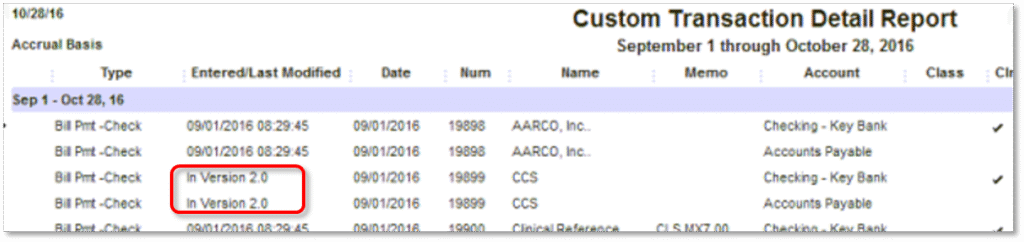
The user might also get an unrecoverable error message in a couple of instances. At the time when the company file contains these chaining errors, your bills, and payments get unlinked, and also the corresponding payments do not have names. The user might also see Version 2.0 in the Entered/last modified column, instead of the actual date of affected transactions, when running the Audit trail or the transaction detail reports.
To know more about the target chaining errors in QuickBooks company file while running rebuild utility, make sure to read this article carefully till the end. Or you can also get in touch with our technical support team, our experts and certified accounting professionals will be always there to assist you.
What factors cause the target chaining errors in QuickBooks?
There are several factors that may embolden this error code. These include the following:
Insufficient system RAM
The Verify & Rebuild utility malfunctions.
Damage caused to the Company file.
Using a poor internet connection.
Using an old data file.
Easy Approaches to Fix Target Chaining Error in QuickBooks Company File
Before you start, note that this error occurs due to an insufficient RAM allocation during the verify/rebuild. In case the company file is more than 2GB, then get in touch with our team of professionals.
Condition: In case the company file is less than 2GB
At first, the user needs to run Rebuild.
Important note:
The user need not to run the Rebuild over the network. The user needs to ensure that he/she is running the Rebuild from the location where the company file is stored. He/she can also copy the company file to another location to run the rebuild locally.
The user should restart the Workstation/server before rebuilding. Also, ensure to free up the memory.
Also, run the Rebuild where you have the most RAM available.
The user needs to navigate to the QuickBooks file menu and then choose the Utilities tab. Afterward, opt for the Rebuild data
Now, choose OK tab and then wait for rebuild to finish.
The user should note that, in certain cases, the view results screen immediately following the rebuild will show incorrect results in the errors we couldn’t fix section.
Afterward, Run verify to ensure there are no additional errors.
After that, the user needs to move to the QuickBooks file menu and also choose Utilities tab and also opt for Verify data.
And then, choose OK tab and also wait for the Verify to finish.
In case these steps didn’t work in fixing the issue, then it is recommended to restore a backup created prior to the rebuild that might turn into the target chaining error. If you are doubtful of the backup to restore, then try opening the company file and press F2 to bring up the product information screen. The user needs to check the RB date, in the versions used on file section.
Now, on the restored company file:
The user needs to hit on the F2 key or Ctrl+1 on their keyboard. And on the Product information page, the user needs to ensure that there is no RB date or the RB date is not close to the day when the issue arise.
Also, run the Rebuild utility, and choose Verify. In case you failed, then the user can continue to have issues with the Bills/Invoices and payments or if case you identify Version 2.0 in transaction detail reports, and check for another backup.
To Wrap it Up!
Once you are done with the steps above, the target chaining error while running QuickBooks rebuild utility might not trouble you. In case it does, make sure to get in touch with some professionals, who can help you in resolving the error with much ease. Make a call at our toll-free QuickBooks customer support number i.e., 1-888-368-8874, and leave the rest on our team of certified QuickBooks professionals.













 +1-888-368-8874