

A simple guide to fix QuickBooks Error H101, H202, H303 or H505 on your own:
QuickBooks is the go-to accounting software for countless small and mid-sized businesses, empowering owners to manage their finances efficiently and focus on core business operations. However, even this robust platform can encounter frustrating errors, particularly the QuickBooks H series errors: H101, H202, H303, and H505.
These common “H series” error codes typically appear when you attempt to access a QuickBooks company file stored on a different computer (multi-user mode issues). Among them, QuickBooks Error code H202 and QuickBooks Error code H505 are frequently encountered.
This comprehensive guide will help you understand what these common errors mean and, crucially, the underlying reasons for their occurrence. While many can be resolved with straightforward troubleshooting steps, understanding the cause is key. For more in-depth solutions or personalized assistance, our team of certified QuickBooks experts is ready to provide unparalleled support to get your system running smoothly again.
Steps to Fix QuickBooks H Series Errors: H101, H202, H303 and H505
The solutions to H series errors (H202, H505) in QuickBooks accounting software are different depending on the cause of the error. The troubleshooting is, however, pretty much similar in most of the cases. You need to check out the following quick steps to resolve the issue. However, the step-by-step walkthrough will assist you.
Solution 1: Use QuickBooks File Doctor tool from tools hub program
You can download directly the QuickBooks file doctor tool from here. Also, QuickBooks tool hub program will let you download the file doctor directly from the inside program.
- Download QuickBooks tools hub program and Save the file on your system.
- After that install the program on your system using the on-screen instructions.
- Once the install process gets complete, double-click on the icon to open the tool hub program.

- After that open the tool hub and choose Company File Issues tab.
- Then choose Run QuickBooks File Doctor option from here. This process can take less then a minute to open.

- Now select your company file from the dropdown menu.
- Also, choose the option ‘Check your file and Network‘ and then press on Continue button.

- Lastly you need to type and enter your Admin password of QuickBooks and then hit on Next button.

Solution 2: Verify hosting and services
Verify hosting
- Launch QuickBooks, head to ‘File‘, and opt for ‘Utilities‘ (do this on all hosting computers).

- Systems showing ‘Host Multi-User Access‘ on the list are not hosting the file. Move to the next computer and consider not making any changes on your workstation.

- Opt for ‘Stop Hosting Multi-User Access‘ option.

- If you see File Must be closed window, hit on the ‘Yes‘ tab.
Verify the services
- Check if the ‘QuickBooksDBXX’ and ‘QBCFMonitor Service‘ are active.
- Tap on the ‘Start‘ button on your computer.
- Hit the ‘Windows + R‘ keys to open ‘Run‘ command.
- As soon as the Services window pops up, the user should search for the QuickBooksDBXX service.
- In service window, scroll down and choose the ‘QuickBooksDBXX‘ service.
- If QuickBooksDBXX Service is unavailable:
- If you are using QuickBooks Database Server Manager (QBDSM) (the entire program is not run on the server), ensure that Database Server Manager (QBDSM) is installed on the server.
- If the entire application/program is run on the server PC, open QuickBooks, make a move to the File tab, and finally tap on Utilities. Make sure that hosting is enabled (it should display the dialog as “Stop Hosting Multi-User Access”). If it displays the “Host Multi-User Mode” dialog, click it to enable hosting on the server.
- Double-click on the QuickBooksDBXX service and ensure that the Startup Type is set to “Automatic” and the service status is “Running” or “Started.”

- Now go to the Recovery tab.
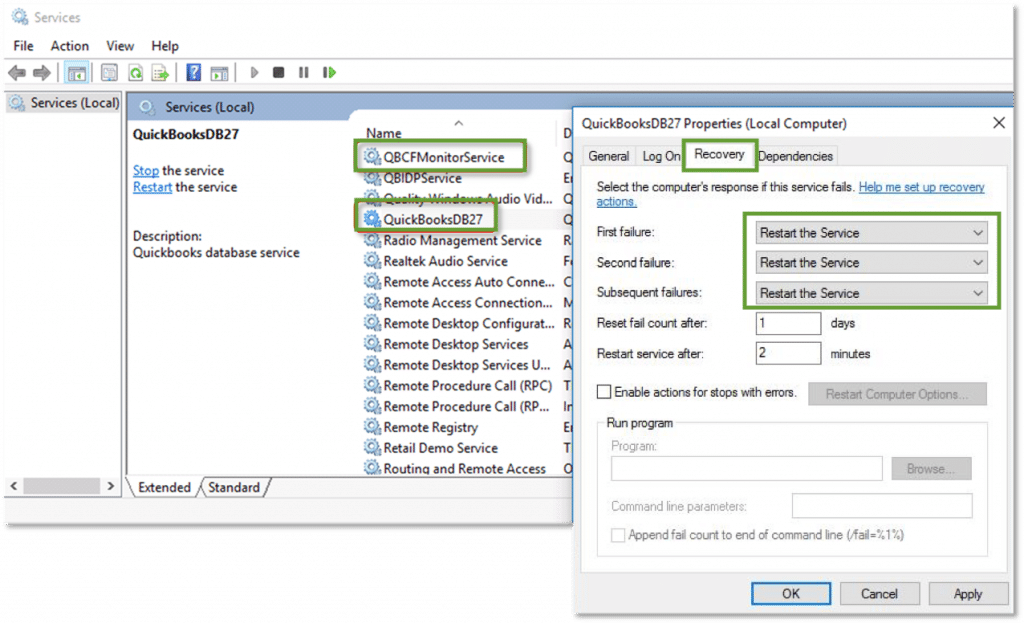
- Choose the drop-down list option for initial failure and select “Restart the Service.” This will allow the QB software to restart the QuickBooks Database service if it fails. Repeat the process if it fails again.
- Also hit a click on OK to save the changes.
- Repeat the procedure discussed prior for the QBCFMonitorService.
- Open the QuickBooks application in a multi-user environment on each affected workstation.
- If you encounter the same issue again, ensure that the QuickBooksDBXX service is a member of the administrator group and has the appropriate permissions.
- Finally, share the QuickBooks company files using “Set Windows Access Permission” and verify the company file.
Solution 3: Configure Firewall to communicate with QuickBooks
Uninstall any antivirus, windows defender or other protection tools that Windows came equipped with.
- Firstly, you need to resolve the ‘Connection Windows Firewall‘ Settings
- Right-click on ‘Outbound Rules‘, and hit on the ‘New Rule‘

- Opt for ‘Ports‘ and then hit on ‘Next‘.
- Choose ‘TCP‘ in the local ports box.

- Now, hit a click on ‘Next‘ and ‘Allow the Connection‘ tab.

- Tap on ‘Next‘ and enter a file name in the name field, for example, “QuickBooks ports” and hit ‘Finish‘.

- Follow the same steps for the Inbound Rules.
- Now, launch QuickBooks in ‘Multi-user mode‘.
Solution 4: Using QuickBooks Database Server Manager
- Navigate to the server system (system that has physically stored the QuickBooks company file).
- In the server PC (system hosting the QuickBooks company files), click on the Start icon and type in database.
- Click onto the QuickBooks Database Server Manager (QBDSM).

- If no folder locations are shown, click on the Browse icon and search for the QB folder where company files are stored.
- Hit a click on the OK tab.
- Click on the Start Scan option.

- This will repair the firewall permissions and allow the QuickBooks application to communicate over the network, fixing the QuickBooks Error code H101, H202, H303, or H505.
- Once it is completed, click on the Close icon. Afterward, attempt to open the QuickBooks application in Multi-User mode on one or more workstations.
Solution 5: Repair/Update QuickBooks desktop
- Hit on the ‘Windows‘ button and access the ‘Control Panel‘.
- Tap on ‘Programs and Features‘ and then QuickBooks.

- Now, dive into the ‘Change/Repair‘ option.

- Read the prompts and ‘Allow‘ the positive options.
- Once the repairing is over, Update QuickBooks to the latest release.

Solution 6: Verifying UNC vs. Mapped Drive
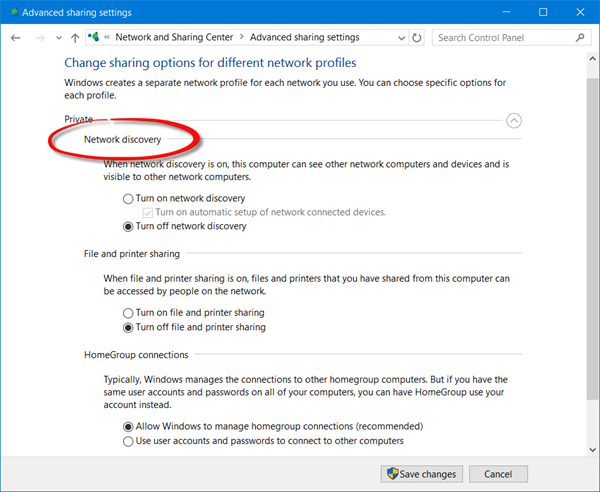
Step 1: Enabling Network Discovery
- Click on the Control Panel.
- Select System and Security, then choose the Windows Firewall icon.

- In the left section, select Allow an app or feature through Windows Firewall (for Windows Server 2012).
- Choose the Change Settings option.
- Click on the Network Discovery tab and select OK.
Step 2: Identifying the server name
- Press the Windows key + R key to open the Run command.
- Type “CMD” and press Enter.
- Type “ipconfig /all” and press Enter.
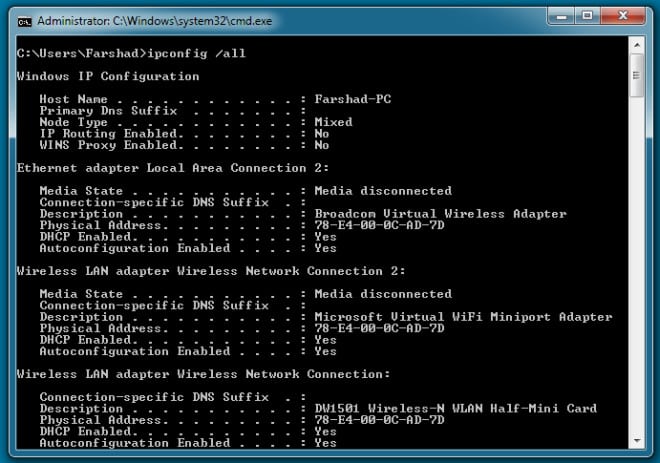
- In the IP Configuration field, locate the Host Name line.
- Take note of the server name on the right side of the screen.
Step 3: Ping the server
- Press the Windows key + R key to open the Run command.
- Enter “ping [servername]” and press Enter.
![ping [servername] - Image](https://axpertadvisors.com/wp-content/uploads/2021/05/ping-servername-Image.jpg "How to Fix QuickBooks Error H101, H202, H203 and H505?")
- You should receive a reply for each packet with none being lost.
Step 4: Verify UNC vs. Mapped Drive
- If you are using a mapped drive to connect to the QB company file on the server, bypass the mapped drive and access the server shared folder via the UNC (Universal Naming Convention) path from the workstation computer (e.g., serverQBData). If the path to your company file starts with a drive letter, it indicates a mapped drive.
- Use the UNC path to locate the QB company file within the QuickBooks application. You can also find it in the title bar when accessing the mapped drive or follow these steps:
- Press the Windows key + R key to open the Run command.
- Type “CMD” and press Enter.
- Enter “net use [drive letter:]” (e.g., net use z:).
![net use [drive letter] - Image](https://axpertadvisors.com/wp-content/uploads/2021/05/net-use-drive-letter-Image.webp "How to Fix QuickBooks Error H101, H202, H203 and H505?")
- Now Press Enter.
- In the IP configuration field, locate the Remote Name line.
- Take note of the UNC path.
Solution 7: Using QuickBooks connection diagnostic tool

- You need to first download and install QuickBooks connection diagnostic tool.
- Furthermore, run the tool and let it scan the QuickBooks company file folder.
- Take note of the IP address shown when the tool runs.
- Enable the Ports that have the open Ports tab in the firewall status section.
- Carry out the wizard instruction till the end.
- Try opening the file from the system and check if the issue persists. .
An overview of QuickBooks Error H101, H202, H303 and H505
H Series Error Codes like (H101, H202, H303, or H505) are extremely most common errors that occurs in multi-user environments. These errors may occur while attempting to transfer a company file from one computer to another computer. During the process, you may be obstructed by this error. To fix these type of errors, we recommend you to run the QuickBooks file doctor tool which is designed to deal with these type of errors. The another reason for occurring these errors might be you don’t have QuickBooks desktop installed on your server along with the database server manager. We also recommend you to add it on your server to get rid of from these errors.
Conspicuous Causes behind to QuickBooks Error H101, H202, H303 and H505
There may be numerous reasons that may trigger these errors. When you try to open a QuickBooks company file in multi-user mode, you may receive the following errors-
QuickBooks Error Code H202:
When Error code H202 occurs you may see the following image on your desktop screen:

- You’re trying to access a QuickBooks company file stored in another computer and this QuickBooks replica can’t reach the server on that computer.
- Your QuickBooks accounting software may not be able to communicate with the server and causing this error.
QuickBooks Error Code H505, H101 & H303:

- You’re trying to open a company file stored on a different computer and the other computer requires extra installation and setup.
Other causes
One or more of the following causes may trigger H series error:
- QuickBooks file hosting configuration/setting is wrong.
- QuickBooks communication blocked by system firewall.
- Database server manager is conflicting with DNS Server.
- QB workstation can’t ping the Host computer, i.e., IP address is not reachable.
- Some QuickBooks Services or components damaged.
- Multiple Database Server Manager versions that are running may be clashing.
- Error Code H202 port is unavailable.
Important points to consider before proceeding with the troubleshooting
Essential pointers to consider before you head further:
- Ascertain that QuickBooks is installed on the server system.
- QuickBooks needs to be installed on the server before you initiate.
- It is installed with or without a license.
- In case QuickBooks application isn’t installed on the server, then you will be unable to use or access the multi-user environment.
- Download the QuickBooks software from official Intuit’s website.
To Wrap up!
If you implement the above-enumerated solutions carefully, you should most likely be able to fix QuickBooks Error H101, H202, H303, or H505. In case the issue still persists, get immediate solutions from our QuickBooks enterprise error support experts.
Other helpful topics:







 +1-888-368-8874