
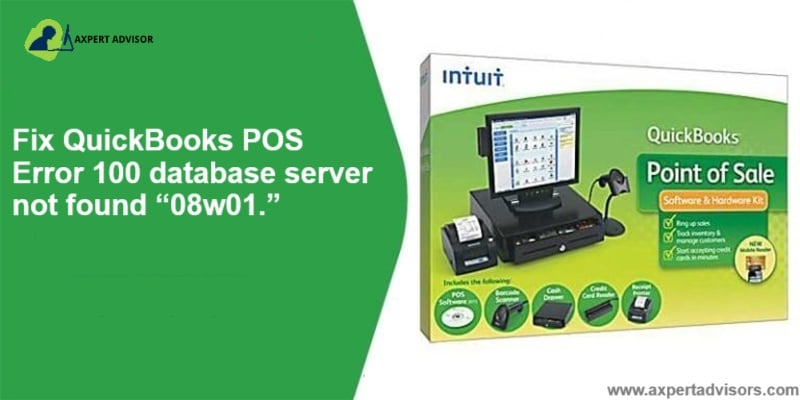
The Point of Sale feature in QuickBooks accounting software is a great feature through which millions of users manage their sales easily. Through this facility you can sell your goods and services online across the world. It enables businesses to accept payments from credit and debit cards and easily manage their stock and inventory. Due to corruption or update problem the software displays some errors, QuickBooks error code 100 is one of them which prevents the users to accessing the software’s program. This error usually indicates that the POS Database Server Manager isn’t responding or the system components needed by QuickBooks POS failed to start. While using QuickBooks if you also facing this error on your screen then this article will help you to resolve this issue.
What is QuickBooks Error Code 100?
Error 100 is most common error in QuickBooks Point of sale and usually appears as “Error 100: Database server not found ‘08w01’.” It surfaces at POS startup, during sign-in, or when processing transactions, and is typically linked to the POS database service, system requirements, or damaged .NET/entitlement components.
What are the reasons by which the QuickBooks error 100 POS occur?
In this article you will get the step by step guidance to troubleshoot the QuickBooks error code 100 but before it you know the reasons which trigger this error.
- If your system Microsoft .NET Framework is not installed correctly.
- There is an error in the POS Database Manager service, and the service is not running correctly.
- Your system does not meet the minimum system requirements to run the POS feature.
- Damaged Intuit Entitlement client folder or corrupted POS install.
- Your QuickBooks POS application are not updated with latest version.
- Your current Windows user account does not have administrative rights or is corrupted.
Symptoms of QuickBooks Error 100 in Point of Sale
If you are experiencing below message on the screen while trying to access the QuickBooks:
- “Error 100 database server not found “08w01.
- “Unexpected error happened. The error is: Value cannot be null. Parameters”
- “Error: 176120 invalid license key status, key denied”
- “Configuration system failed to initialize” (while opening the application).
- “Error: QBPOSShell has stopped working”.
What we need to do before troubleshoot the QuickBooks Error 100?
Before fixing the QuickBooks Error 100 we need to some preparation which are:
- If your application is running with old version update it with latest version.
- Make sure your computer meets the minimum system requirements to run the application to function correctly.
- Reinstall Microsoft .NET Framework on your system.
- You must use an administrator account to log in to Windows.
How to fix the QuickBooks POS Error Code 100?
Below are the best solutions to fix the QuickBooks POS Error Code 100:
Solution 1: Update QuickBooks POS to the Latest Release
- Open the QuickBooks POS software, then go to the Current menu option and select the Product Updates Page option.
- After that open the list of Products and Programs and make sure QuickBooks POS is marked.
- Now follow the on screen instruction to run to process of installation of POS updates.
- At the end restart your PC and try to run the QuickBooks POS.
Solution 2: Restart QuickBooks POS Shell
- Close all the tabs which is open related to the POS software by pressing Ctrl + Alt keys.
- If above shortcut doesn’t work then open the Task Manger and search the Processes tab.
- Go to the Image name option then right click on the QBPOS shell.exe file.
- Click on the End process tab and exit from the Task Manager.
- Also, find the POS software icon on your device display and right-click your mouse to open a new menu.
- Choose the Compatibility troubleshooting option then click on the Try recommended settings option.
- Follow all the instructions which is shown on your screen after that reboot your system to end the process.
Solution 3: Restart the QBPOS Database Manager service
- Press Windows and R key to open the Run window.
- Type the “Services.msc” in the search box and Enter key.
- A service window will open in which List of all services is shown.
- Find the QBPOS Database Manager service from the above list and right-click on it.
- At last restart your system and try to run the QuickBooks POS.
Conclusion
Hopefully above article helps you to resolve the QuickBooks POS error 100. Once you perform the set of steps mentioned in here, it becomes easy for you to tackle through Error 100 without any technical hindrance. If the error persists, then you can contact our QuickBooks error support team with the number i.e., 1-888-368-8874 for best guidance.
FAQ’s related to this error
When does Error 100 typically appear?
At POS launch or during transactions when the database service can’t be reached, often with “database server not found ‘08w01’.”
Will repairing .NET help?
Yes. damaged .NET frequently blocks POS components; repair or reinstall .NET 3.5/4.x and reboot.
Do I need to reset the Entitlement Client folder?
If entitlement data is corrupted, you need to rename the folder forces regeneration and can clear Error 100 in QuickBooks POS.
Is a clean re-install always required?
No….! Many cases resolve with a service restart, updates, and .NET repair. Clean reinstall is a last resort.
Could user permissions cause this?
Yes, restricted/UAC-limited profiles can block POS services. Use an admin account or run as administrator.
Similar Articles:
How to Resolve QuickBooks Banking Error 324?
Steps to Troubleshoot QuickBooks Install Error 1904
QuickBooks Error 6105: How to Fix Database Connection Issues?







 +1-888-368-8874