
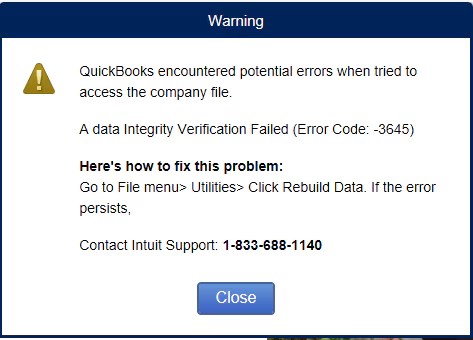
Are you troubling with a common error ‘QuickBooks error 3645’ that occurs when the data integrity verification fails. Don’t worry, you are not alone in facing this issue. This error usually related to damaged company files and problems in the QuickBooks program. However, as it is a common error, it is very easy to resolve. Below, we will learn about the factors behind this error and then briefly discuss the solutions to fix this error.
What are the causes behind the QuickBooks Error 3645?
Main causes which trigger the QuickBooks Error message 3645 are mentioned below-
- Error 3645 occurs when your QuickBooks is unable to validate the data, and the validation process fails.
- The data in your company file in damaged or corrupted or have integrity issues.
- QuickBooks may be having general program problems, or the software may not be installed correctly.
- QuickBooks desktop cannot verify or access data file.
- Insufficient user permissions or account issues.
Steps to Troubleshoot the QuickBooks error message 3645
Following are some recommended solutions to fix QuickBooks error code 3645. It is best to perform below given steps sequentially for the most effective results.
Solution 1: Run the Verify/Rebuild Data Utility
Step 1: Verify your company data
- Open QuickBooks desktop then go to the File menu.
- After that hover over to Utilities and select Verify data.

- Let the tool run. It will scan your company file for any data issues.
- If QuickBooks finds issues, you will see a message stating, “Your data has lost integrity.” This confirms that you need to rebuild the file.
Step 2: Rebuild your company data
- After that exit from the application then again open it.
- Go to the File menu and then select Utilities and Rebuild Data tool.

- After this, QuickBooks will prompt you to create a backup before running the Rebuild Data tool. Select OK, create the backup, choose a location to save it, then press OK again.
- When the rebuild complete message appears, select OK, then return to the File menu.

- Once the rebuild is complete, you need to run the Verify data utility again to check all issues have been fixed.
Solution 2: Run QuickBooks File Doctor
- First download the latest version of QuickBooks tools hub program and install it. If you already have then click to open it.
- Now click on the Company file issue tab and select Run QuickBooks file doctor.

- Let the file doctor and click on OK to allow the tool to scan process and repair any issues with the data file.
- Once the process complete open the QuickBooks desktop and check your error is continue persist or not.
Solution 3: Run the Quick Fix My Program Utility

- First, open the QuickBooks Tools Hub, then go to the Program Problems section.
- Then click on the Quick Fix My Programs tool.
- Tool start the process to fix the issue after it stops reopen the QuickBooks desktop and try to access your data file.
Solution 4: Run the QuickBooks Install Diagnostic Tool
If the Quick Fix My Programs tool is unable to fix issues leading to error code 3645, try running the QuickBooks Install Diagnostic Tool to fix installation issues.
- Open the QuickBooks Tools Hub then go to the Installation Issues menu, and select QuickBooks Install Diagnostic Tool.

- Let the tool run, which may take up to 20 minutes, and when it’s finished running, restart your system.
- Again open the QuickBooks and try to access the data file and check error will continue or not.
Solution 5: Update QuickBooks to the Latest Release
- Open QuickBooks desktop and go to the Help menu.
- Then select Update QuickBooks Desktop option.

- After that hit a click on the Update Now tab and select Get Updates.

- Once the updates are downloaded, restart QuickBooks to install them.
Solution 6: Manually Remove QuickBooks Downloader Files
If the above provided solutions fail to fix the error, then you need to try the manual steps to fix it.
- At first, press the Windows + E keys and open Windows File Explorer.
- After that look out the QuickBooksDownloader.exe.config and QuickBooksDownloader.exe.manifest files.
- Once the .exe files are found, right-click each file name and press the Delete button.
- Now delete both files manually, then reopen QuickBooks and try to verify your data again.
Conclusion
With the help of above solutions hopefully your QuickBooks error code 3645 is now be solved. However, if these solutions are not helpful in fixing data validation issues and the error persists, then you can reach our 24/7 QuickBooks error support team at 1-888-368-8874 for better guidance to fix this issue.
Other helpful articles:
How to Fix QSW Error: Office Document Customization is Not Available?







 +1-888-368-8874