

Are you facing an abrupt halt in your QuickBooks workflow due to Error Codes -6190 and -816? This common technical glitch frequently occurs when multiple users attempt to access a QuickBooks company file that is inadvertently set to single-user mode. Such disruptions can severely impede your progress and cause significant frustration.
The good news is that like most errors in QuickBooks, this issue is entirely fixable with the right approach. This comprehensive guide is specifically designed to provide you with all the essential information regarding QuickBooks Error Codes -6190 and -816, along with a detailed set of corrective measures you can perform to resolve them.
Stick with us to the end to master these troubleshooting steps, or for immediate assistance and personalized solutions, don’t hesitate to connect with our QuickBooks technical support experts via our dedicated helpline. Let’s get your QuickBooks back on track!
Troubleshooting Strategies to fix QuickBooks Error Code 6190, 816
This error can be resolved by conforming to the following strategies:
Method 1: Use Quick Fix My Program Feature
You need to use the Quick Fix My Program tool within the QuickBooks Tool Hub program. The steps are
- Download and set up the Tool Hub.
- Go to the Program Problems tab, then Quick Fix My Program, then perform the scan.

- Wait till scan porcess is over, and when it is finalized, run QuickBooks again. This will resolve Error 6190, 816 within QuickBooks desktop.
Method 2: Update QuickBooks desktop
- At first open QuickBooks as an Administrator.

- Then go to Help menu, and then Update QuickBooks Desktop.

- Go for Update Now, and then Reset Updates checkbox.

- Now, click on Get Updates.
- At last, quit your QuickBooks and then run it again. Also, you need to click Yes to install the updates.
Method 3: Use the QuickBooks File Doctor Tool
When it comes to fixing errors in the company files, the QuickBooks File Doctor tool should be your first priority.
To use this to fix QuickBooks error message 6190, 816, do the following:
- In the first step, download Tool Hub and then install it on your system.
- Run the tool, then go to Company File Issues, and then select Run QuickBooks File Doctor.

- Now hit on Browse, then choose company file.

- Provide correct credentials, then begin scanning the file.
- When it is over, run QuickBooks, then open the company file again.
Method 4: Check for the Single-User Mode
- Initially, go to the File menu and click on the Single to single-user mode option.
- It will turn on single-user mode.

- After that, log out of the QuickBooks software accounts.
- Then reboot the systems that are on the network.
- Also, copy the company data file to the desktop screen of the system.
- Now transfer it back to the original position.
- In the last step, log in to the QuickBooks account.
Method 5: Removing Temporary files
At times, excessive accumulation of temp and junk files can lead to such errors. For this, it becomes necessary to remove the temp files:
- At first, click on the Start menu, then search for Clean.
- After that hit on the Disk Cleanup tool, choose the C drive.
- Now, following that, tick the box besides Remove Temporary Files.
- Now, start the cleanup process and wait until it is done.

Manual method to delete the temp files:
- Press the Start button and type the Windows + R keys to open the Run box.
- After that, hit the Enter key.
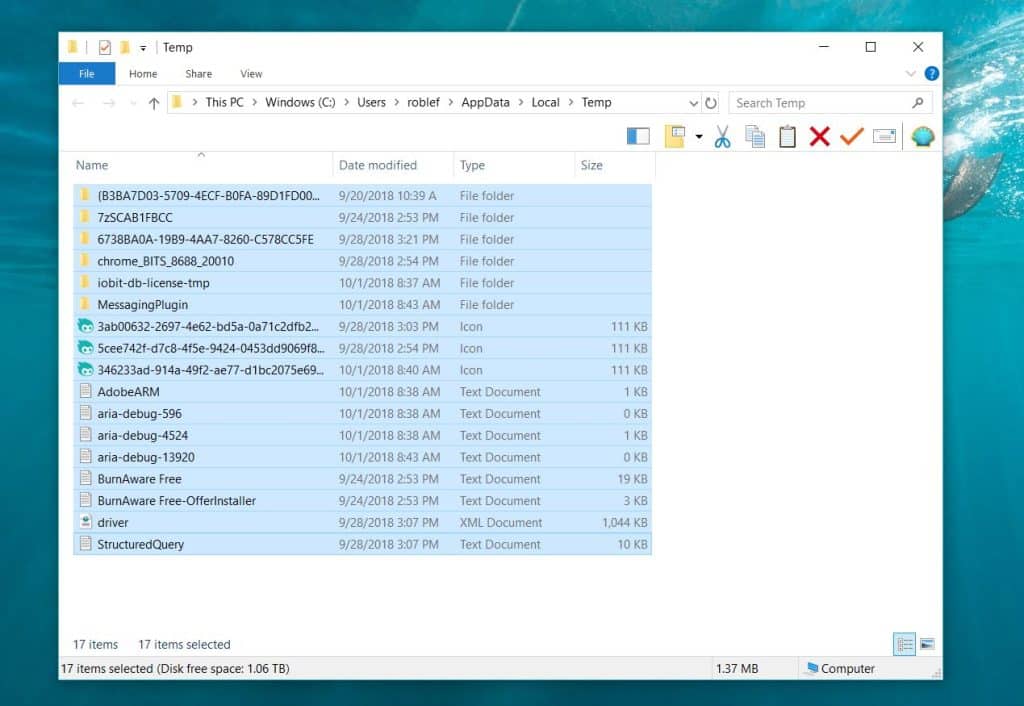
- In the next step, type %Temp% in the run box.

- You need to select all the temp files in this folder.
- At last, delete them by pressing the Shift+Delete key.
Method 6: Update your Windows operating system.
Updating Windows sets up the latest Windows components on the system, which lays the groundwork for a seamless working of QuickBooks. The steps for updating Windows are
- From the Start menu, search ’Update,’ then open Windows Update.
- Go to Settings and choose the Update & Security tab.
- In the next step, open the Windows Update tab.
- Pick the Check for Updates option.

- In case there are any updates, then it will start downloading on its own.
- You need to mark the important ones and then download the updates.
- To install them, restart the PC, and all the updates will install in the next restart.
Method 7: Verifying and rebuilding the company file
To use the verify and rebuild tool, follow the given steps:
- Open QuickBooks and select the File menu > Utilities > Verify Data.

- QuickBooks will perform a scan of the company file and identify any data issues. If it finds any issues, it will prompt you to rebuild the data.
- To rebuild the data, select File > Utilities > Rebuild Data.

- QuickBooks will display a successful message once the rebuild process is complete.

Method 8: Try the Windows Restore
- At first, click on the Start menu, and then search for “Restore.”
- In the next step, click on the System Restore option.
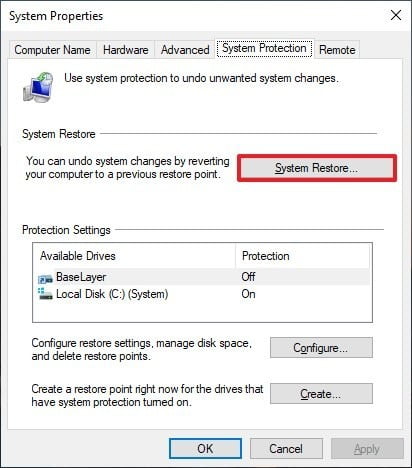
- Now select the Recent Reset Point and proceed with the restore process.

- At last, run QuickBooks and make another attempt to open the company file.
Method 9: Rename Network and Transaction files
As mentioned in the list of causes, damage in the network (.ND) or transaction log files (.TLG) could also trigger QuickBooks error message 6190, 816.
To resolve this, the most effective approach is to rename these files.
- At first, go to Drive C: Users/Public/Public Documents/Intuit/QuickBooks.
- Then, look for files having the .TLG and .ND extensions.
- Right-click them, then choose Rename.
- Then, choose .OLD at the end of the filename.

- When all done, run QuickBooks, then open the company file previously facing the ongoing error.
- The file should be accessible this time without the occurrence of the error.
Method 10: Move the company File to different folder
Moving the company file to the desktop or any other location besides the original company file folder has fixed this error in many cases. To do this:
- At first, go to the company file folder, then look for the company file.
- Right-click it, then select Copy.
- Then make a new folder on the desktop and paste the file in it. Either use the Ctrl + V keys or right-click in the folder, then hit Paste.
- Run QuickBooks, then try opening the file from this new location.
A Sneak Peek Into the QuickBooks Error 6190 and 816
This company file error shows in the form of a message stating as:
| Information | Description |
|---|---|
| Error code: | 6190, -816 |
| Error description: | QuickBooks has encountered a problem and needs to close. We are sorry for the inconvenience.” or “An error occurs when QuickBooks tries to access the company file (-6190, -816): or “QuickBooks was unable to open the file [path] on the host computer. “QuickBooks is unable to open the company file. It may have been opened by another user. You should ask that user to switch to multi-user mode so that you can both use the company file simultaneously. This file could also be located in a read-only network folder. Error Codes: (-6190, -816) or QuickBooks Error 6190 Multi-User Not Working.” |
| Software: | Intuit QuickBooks Desktop |
| Symptoms: | Error code appearing on the screen, windows running slowly, system freezes, system crashes, loss of some essential data files, etc. |
| Quick solution: | Use QuickBooks file doctor tool |
When this error happens, QuickBooks is unable to access the company file and the user receives the following error message on their screen:

Some of the noteworthy causes of QuickBooks Error 6190 and 816
It is prudent to first go through the various causes that may result in this error code. These include:
- The company file may be damaged due to a virus or a sudden system shutdown, which led to its data damage.
- The transaction log file (TLG file) may be damaged or not showing a match with the company file. Another reasons can be damaged Network (ND file)
- QuickBooks is not updated to the newest version.
- The company file may be saved in the read-only folder.
- The file location got changed, and the user may be trying to access the file from the previous location.
- You can land into a similar issue if the .qbw file is being updated on another system but the transaction log file isn’t updated to the latest version.
What Signs indicate QuickBooks error code 6190 816?
Some of the notable symptoms that act as a forerunner of this company file error in QuickBooks include
- The first conspicuous sign is the appearance of the error message related to Error 6190 and 816 when opening the company file.
- QuickBooks and the system experience technical glitches when opening the company file or when running QuickBooks.
Need further assistance…!
This blog earmarked the major strategies to help you resolve QuickBooks Error 6190, 816. If the error is still occurring, or if you need help on any other matter, call our 24/7 QuickBooks error support team at Axpert Advisors through the helpline, i.e., 1-888-368-8874
Related Articles:






 +1-888-368-8874