

As we all know that creating and tracking financial records is very important in any business. There are many accounting software available in the market to track and create financial records of businesses, one of them is QuickBooks desktop software. QuickBooks has been a game-changer in the accounting industry. Its advanced features have created a new buzz across businesses. Although transactions are an important aspect of managing any account, many times users face Error C=47 while working with transactions in QuickBooks. Due to this error any user is unable to create their financial reports. Today in this section, we will learn in-depth about QuickBooks error code C=47. Along with this, we will also try to know the reasons behind this error. However, if you are facing the same issue again and again and want it resolved at the earliest, just make sure that you read this article till the end॰
What is Error Code C=47 in QuickBooks?
Error C=47 in QuickBooks desktop is seen by users when the QuickBooks software is unable to find or access a specific transaction in the company file. Also, this error usually appears when performing payroll activities, posting payments, updating transactions in the company file or opening the company (.qbw) file. There is no official reason behind to this error but a few might be several reasons behind it such as damaged or corrupted company file, incorrect Internet Explorer settings, issues with the transaction file or an outdated version of QuickBooks. You can fix QuickBooks desktop error C=47 by following the solutions below.
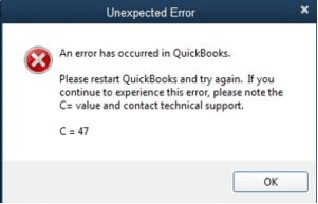
When this error encounters, an error message stating:
Error has occurred in QuickBooks, please restart the computer.
Or
“An error has occurred in QuickBooks.” Please restart QuickBooks and try again. If you continue to experience this error, please note the C=value and contact technical support. Error: C=47
When the Error Code C=47 occurs in the QuickBooks Desktop?
You might get the error message on the following conditions:
Occurrence 1: At the time a user try to email a “Payment Receipt”, following error message may appear on the screen:
| Warning | “An error has occurred in QuickBooks.” Please re-start QuickBooks and try again. |
| If you continue to experience this error, please note the C=value and contact technical support. C=47 |
Occurrence 2: You may receive error code C=47 every time when you are trying to post payments to customers. Error message reads as:
| Warning | An Error has occurred in QB, please restart the computer, but it does not go away even after restarting. |
| Error Code = 47 |
What Causes QuickBooks Error Message C=47?
There are some factor which is responsible for the QuickBooks Error Code C=47 are listed below. Let us have a look:
- Damage or corruption occurs to a QuickBooks data file.
- The Company file might be corrupted.
- A previous backup of the QuickBooks data file is already available.
- There might be incorrect entries in reports and transactions.
- Another possible reason can be if Internet Explorer’s settings are incorrect or not configured properly
- If the Transaction log (.TLG) or the Network data (.ND) file is stored in a corrupted file folder or the QuickBooks directory might be corrupted.
- When editing entries, you could experience similar problems.
Solutions to Fix the QuickBooks Error Code C=47
You can try the below given solution methods in order to rectify the error code C=47 in QuickBooks or related to other C series of errors:
Solution 1: Repair QuickBooks and the .dll file
The first effective solution involves repairing of the .dll file, and if that doesn’t fix the problem, then going for repairing of QuickBooks.
Step 1: Repair the dll file
- The first step is to check if issue appears when loading the “\3\LXCRtime.dll” file. If it does, then in such case, you are required to scan the computer for viruses and malware.
- After that you need to click on repair tab, once opening the file that needs repair.
- Also click on the same.
- Now this will open a window, where you need to choose select all tab.
- Hopefully this will fix the issue. If this doesn’t, then repair QuickBooks desktop.
Step 2: Repair QuickBooks desktop
- Press the Windows/Start key and open the Control Panel.
- After that move to Programs and Features. A list of installed programs will appear on your screen.
- Herein, search for QuickBooks program and click on it.
- Followed by tap on Uninstall/Change option.

- Once done with that, select Repair option and perform the onscreen instructions to repair QuickBooks.

- If the repair process fails, then in that case, proceed to the next solution.
Solution 2: Run Verify and Rebuild data tool
Verify and rebuild data in QuickBooks desktop is a very important tool to fix such type of damaged company file issues. Perform the steps to use these utilities:
Step 1: Use rebuild data utility
- To begin the process, select the Utilities tab from the File menu.
- Then select Rebuild Data from the menu.

- Now, in the QuickBooks Information window, click the OK button.
- To back up the company file, press the OK button once again.
- A new dialog box stating “The rebuild has completed ” will appear on the screen.
- Click the OK button to finish.

- Here, the use needs to click on Ok tab.
Steps to use the Verify data tool
- Initially, go to File menu again and navigate to the Utilities.
- After that, click on Verify data option.

- If QuickBooks is unable to detect persistent problems with the data, click the OK tab.
- When it’s complete, you may need to access the company file once again.
- If validation finds any data problems, you’ll be given the option to rebuild immediately or view errors.
Solution 3: Update QuickBooks Desktop
The steps to update QuickBooks desktop to latest release are:
- At first, you need to open your QuickBooks desktop as system admin.
- Then press the F2 key.
- The Product Information window will display your current version and release. If your QuickBooks is not up-to-dated then, go with the following steps:
- Move to the Help menu and select Update QuickBooks option.

- Now click on the Update Now tab and check-mark on the Reset Update checkbox.
- Here you need to select Get Updates tab to download the latest release.

- Once done with the process, restart QuickBooks.
- If prompted to install the update, click Yes and follow the instructions.
Solution 4: Update the system drivers
Restart your computer after removing/uninstalling the driver and wait for the driver to configure itself.
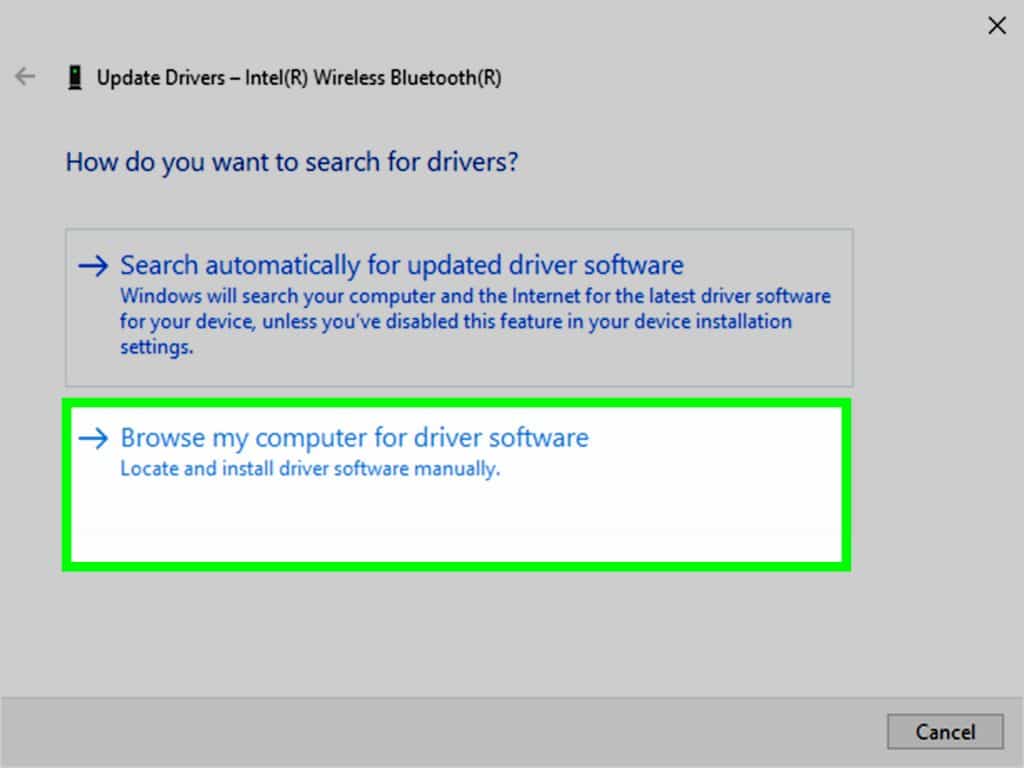
- Press the Start button and type in ‘’Device manager’’ in the search box.
- After that click on Manager icon to open the window.
- Check if all the drivers have been updated properly and are up to date. If not, the go with these steps:
- The driver software needs to be updated now.
- Search the system for driver software in the new window.
- Selecting the device driver from the following list.
- Identify and offer the driver that ends with legacy.
- Clicking the Next button will finish the process.
Solution 5: Set Internet Explorer as default browser
If your IE browser is not set as default browser, then such thing also land into such an error. That’s why, we suggest you to work on your internet explorer settings and set it as a default browser.
- At first, open your Internet Explorer browser.
- After that move to the Tools button and select Internet options.
- Now click on Programs tab and choose Make default.

- Lastly, tap on OK button and close your Internet Explorer.
Solution 6: Check and reconfigure Internet Explorer settings
- Under this solution, open QuickBooks Desktop.
- After that click the Help menu > Internet Connection Setup.
- Then select Use my computer’s Internet connection settings > click Next.
- Now click on Advanced Connection Settings.
- In the Internet Options window, go to the Security tab.
- Then click on the Trusted Sites zone > then click Sites.

- Add the following URLs:
- Now click on Close and Custom Level.
- Under the Miscellaneous category, find Access data sources in domain and select Enable.
- In last step, hit a click OK, then Apply, and finally OK again.
Summing up..!
In this segment we learnt about the process to troubleshoot QuickBooks Error Code C=47. We also discuss the possible reasons which trigger this error. We also try to give you the best solutions to fix this issue. By following above solution hopefully your error have been resolved now. If you have any doubt and still need any technical guidance then you contact our QuickBooks error support professional team at +1-888-368-8874. is suggested. You can speak our experts they will provide you immediate guidance for your problem.
Related Articles:







 +1-888-368-8874